
How I identified the July 2026 publishing metadata problem, cleaned SUSDB safely and verified the Software Update Point end to end
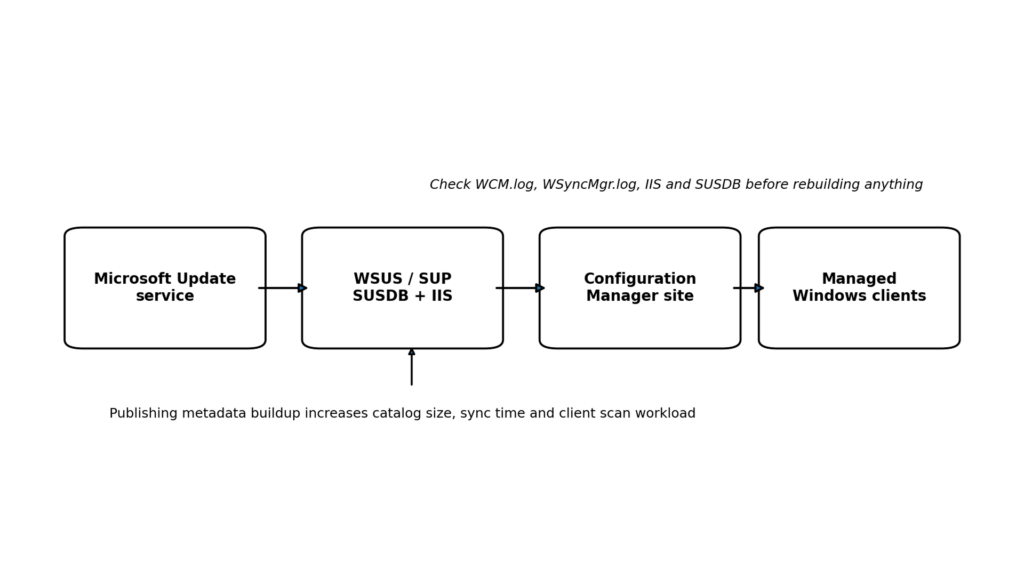
Figure 1. WSUS and Configuration Manager update flow, with the affected metadata path highlighted.
The problem I was seeing
A Software Update Point that normally completed its synchronization in a predictable window suddenly needed much longer and then started to time out. The first reaction in this situation is often to rebuild WSUS. I do not start there. A rebuild can hide the actual cause, triggers a fresh catalog synchronization and forces clients through heavier scans. My first step is always to confirm whether the failure is local, service-side or a combination of both.
In July 2026 Microsoft confirmed a WSUS service degradation caused by a buildup of published test detectoids. The strongest impact was observed from 13 July 2026. Microsoft deployed a service-side mitigation on 18 July, but existing WSUS installations could still retain the unnecessary metadata and therefore still require a local SUSDB cleanup.
| What made this incident different This was not simply a slow WSUS server. The catalog itself contained unnecessary publishing metadata. A server-side mitigation protected new installations and rebuilds, while existing SUSDB databases could remain affected until the metadata was removed. |
| Item | Details |
| Observed symptom | Long synchronization, timeout in WSyncMgr.log, high WsusPool load or client scan errors |
| Confirmed cause | Published test detectoids matching Product Detectoid for ProductName TestProduct% |
| Service mitigation | 18 July 2026 |
| Local remediation | Back up every SUSDB, run Microsoft cleanup query on every SUSDB, reindex, cleanup, recycle WsusPool |
| Do not forget | Restore MaxXMLPerRequest to 5242880 after the environment is stable |
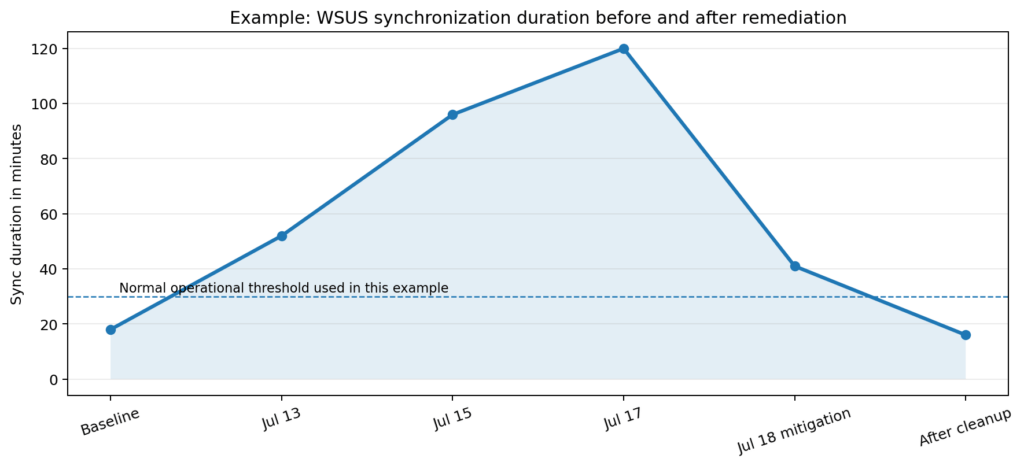
Figure 2. Illustrative timing example.
Step 1: Confirm that it is really a synchronization problem
Before touching WSUS or SUSDB, I collect a small baseline. This prevents unnecessary changes and gives me something measurable to compare after remediation.
- Note the exact time when the sync started and failed.
- Check whether the issue started around 13 July 2026 or at another known change window.
- Check Microsoft Windows release health before treating it as a purely local failure.
- Confirm whether all SUPs are affected or only one server.
- Check free disk space, SQL/WID health, IIS WsusPool state and network or proxy changes.
Logs I check first
| Log | What I look for | Typical location |
| WCM.log | SUP configuration, WSUS connection, port and SSL errors | <ConfigMgr install path>\Logs\WCM.log |
| WSyncMgr.log | Start, progress, timeout, retry and successful completion | <ConfigMgr install path>\Logs\WSyncMgr.log |
| WSUSCtrl.log | Health state of the Software Update Point | <ConfigMgr install path>\Logs\WSUSCtrl.log |
| IIS logs | HTTP 503, long requests and abnormal client activity | C:\inetpub\logs\LogFiles |
| WindowsUpdate.log | Client scan errors and deployed entity count | Generated with Get-WindowsUpdateLog |

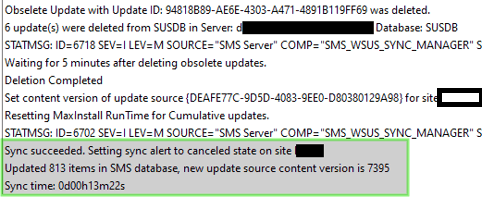
Figure 3. Example WSyncMgr.log sequence.
Quick PowerShell health collection
# Run elevated on the Software Update Point
$Output = "C:\Temp\WSUS-Health-{0:yyyyMMdd-HHmmss}.txt" -f (Get-Date)
New-Item -ItemType Directory -Path (Split-Path $Output) -Force | Out-Null


"=== WSUS / SUP Health Check ===" | Out-File $Output
Get-Date | Out-File $Output -Append


"`n=== Services ===" | Out-File $Output -Append
Get-Service W3SVC,WsusService | Select-Object Name,Status,StartType |
    Format-Table -AutoSize | Out-String | Out-File $Output -Append


"`n=== WsusPool ===" | Out-File $Output -Append
Import-Module WebAdministration
Get-Item IIS:\AppPools\WsusPool |
    Select-Object Name,State,@{n='PrivateMemoryKB';e={$_.recycling.periodicRestart.privateMemory}},
    @{n='QueueLength';e={$_.queueLength}} |
    Format-List | Out-String | Out-File $Output -Append


"`n=== Disk Space ===" | Out-File $Output -Append
Get-Volume | Where-Object DriveLetter |
    Select-Object DriveLetter,FileSystemLabel,
      @{n='FreeGB';e={[math]::Round($_.SizeRemaining/1GB,2)}},
      @{n='SizeGB';e={[math]::Round($_.Size/1GB,2)}} |
    Format-Table -AutoSize | Out-String | Out-File $Output -Append


"`n=== Recent WSUS / IIS Events ===" | Out-File $Output -Append
Get-WinEvent -FilterHashtable @{LogName='Application'; StartTime=(Get-Date).AddHours(-12)} |
    Where-Object {$_.ProviderName -match 'Windows Server Update Services|IIS|WAS'} |
    Select-Object TimeCreated,ProviderName,Id,LevelDisplayName,Message -First 100 |
    Format-List | Out-String | Out-File $Output -Append


Write-Host "Report created: $Output"| My rule I never start with IISReset, a WSUS role reinstall or a SUSDB deletion. Those actions may temporarily change the symptom without proving the cause. |
Step 2: Match the symptoms with the July 2026 incident
Microsoft documented the detectoid naming pattern and the error codes that can occur on clients. The key server-side symptom is a sync that takes considerably longer than its normal baseline or does not complete. On clients, 0x80244010 is especially relevant because it means the scan exceeded the maximum number of server round trips.
| Code | Meaning | Interpretation |
| 0x80244010 | Maximum server trips exceeded | Catalog or scan is too large |
| 0x8024400E / 0x80244007 | SOAP server or SOAP client fault | WSUS timed out or rejected an oversized dataset |
| HTTP 503 | Service unavailable | WsusPool is overloaded or recycling |
| 0x80072EE2 | WININET timeout | The scan ran too long |
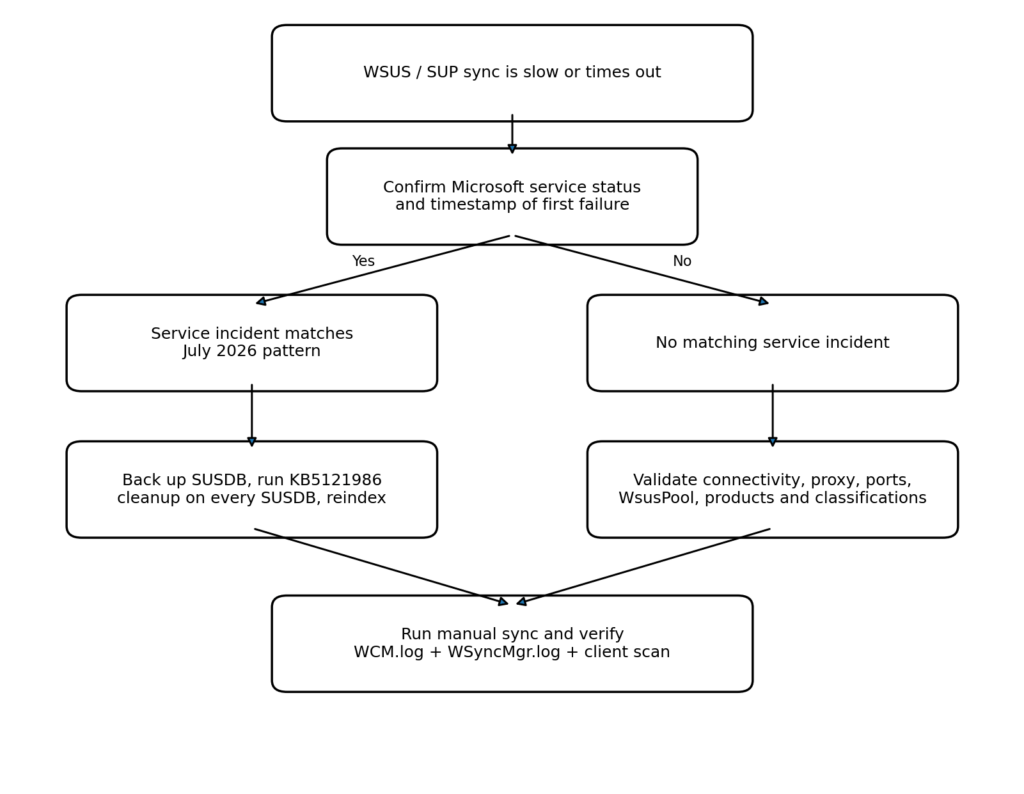
Figure 4. Troubleshooting flow used to separate the July 2026 metadata incident from local SUP failures.
Step 3: Back up SUSDB before deleting metadata
The cleanup permanently removes update metadata. I therefore create a database backup before running the query. In a hierarchy with multiple WSUS databases or replicas, every SUSDB must be backed up and cleaned independently because these deletions do not replicate between WSUS servers.
BACKUP DATABASE SUSDB
TO DISK = N'C:\Backup\SUSDB_PreDetectoidCleanup.bak'
WITH INIT, STATS = 5;| WID connection For Windows Internal Database, start SQL Server Management Studio as administrator and connect to: \.\pipe\MICROSOFT##WID sql\query |
Step 4: Run the Microsoft KB5121986 cleanup query
The following query is the remediation published by Microsoft. It first sets MaxXMLPerRequest to 0 to remove the 5 MB limit temporarily, then finds the affected detectoids and calls the supported WSUS stored procedure for each update ID. Run it against every SUSDB, including replicas.
SET NOCOUNT ON;


UPDATE tbConfigurationC SET MaxXMLPerRequest = 0;


DECLARE @updateID uniqueidentifier;
DECLARE @retcode  int;
DECLARE @deleted  int = 0;
DECLARE @skipped  int = 0;


DECLARE detectoid_cur CURSOR LOCAL FAST_FORWARD FOR
    SELECT u.UpdateID
    FROM dbo.tbUpdate u
    JOIN dbo.tbRevision r
      ON r.LocalUpdateID = u.LocalUpdateID
    AND r.IsLatestRevision = 1
    JOIN dbo.tbProperty p ON p.RevisionID = r.RevisionID
    JOIN dbo.tbLocalizedPropertyForRevision tbrp
      ON tbrp.RevisionID = r.RevisionID
    JOIN dbo.tbLocalizedProperty tlp
      ON tlp.LocalizedPropertyID = tbrp.LocalizedPropertyID
    WHERE p.UpdateType = 'Detectoid'
      AND tbrp.LanguageID = p.DefaultPropertiesLanguageID
      AND tlp.Title LIKE
          'Product Detectoid for ProductName TestProduct%';


OPEN detectoid_cur;
FETCH NEXT FROM detectoid_cur INTO @updateID;


WHILE @@FETCH_STATUS = 0
BEGIN
    BEGIN TRY
        EXEC @retcode = dbo.spDeleteUpdateByUpdateID @updateID;
        IF @retcode = 0
            SET @deleted += 1;
        ELSE
            SET @skipped += 1;
    END TRY
    BEGIN CATCH
        SET @skipped += 1;
        PRINT CONCAT('Skipped ', CONVERT(varchar(40), @updateID),
                    ' : ', ERROR_MESSAGE());
    END CATCH;


    FETCH NEXT FROM detectoid_cur INTO @updateID;
END;


CLOSE detectoid_cur;
DEALLOCATE detectoid_cur;


SELECT @deleted AS DeletedDetectoids,
@skipped AS SkippedDetectoids;| Production warning Run the Microsoft query exactly against SUSDB, not against the Configuration Manager site database. Test the process in a lab where possible and keep the backup until client scans and synchronization are stable. |
Step 5: Reindex SUSDB and enable ConfigMgr maintenance
A large delete operation fragments the SUSDB indexes. After the detectoids are removed, I reindex SUSDB and then verify that Configuration Manager is configured to perform its own WSUS maintenance after synchronization.
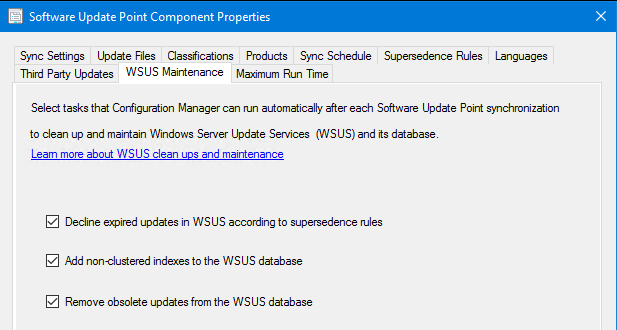
Figure 5. WSUS Maintenance options in Software Update Point Component Properties. Screenshot source: Microsoft Learn.
- Administration > Site Configuration > Sites
- Select the top-level site
- Configure Site Components > Software Update Point
- Open the WSUS Maintenance tab
- Enable decline expired updates, non-clustered indexes and removal of obsolete updates
I also review the Supersedence Rules tab. Declining too aggressively can remove an update that is still needed, while never declining superseded updates allows the catalog to keep growing.
Step 6: Run cleanup and recycle the application pool
# Use after SUSDB cleanup and reindexing
Import-Module UpdateServices

Invoke-WsusServerCleanup -CleanupObsoleteUpdates -CompressUpdates -DeclineExpiredUpdates -DeclineSupersededUpdates

Import-Module WebAdministration
Restart-WebAppPool -Name 'WsusPool'

# Start a manual ConfigMgr software update synchronization afterwards
# and monitor WCM.log and WSyncMgr.log.
In a Configuration Manager current branch environment, the built-in SUP maintenance options should handle most cleanup actions. I use the standalone cleanup cmdlet only when it matches the environment and change plan. Running every cleanup switch blindly is not a substitute for understanding which component owns content and reporting.
Step 7: Restore MaxXMLPerRequest after stabilization
Microsoft instructs administrators to restore MaxXMLPerRequest to its default value after WSUS has stabilized and clients can scan successfully.
UPDATE tbConfigurationC SET MaxXMLPerRequest = 5242880;Validation: how I prove that the fix worked
| Validation point | Expected result |
| Server synchronization | A manual sync completes and WSyncMgr.log records a successful finish |
| SUP health | WCM.log and WSUSCtrl.log show no new connectivity or configuration errors |
| IIS | WsusPool remains started and HTTP 503 errors stop increasing |
| Database | The cleanup query completed, SUSDB was reindexed and maintenance is enabled |
| Client scan | WindowsUpdate.log shows a significantly lower deployed-entities count after the first catch-up scan |
| Timing | Sync duration returns close to the historical baseline |
Troubleshooting table
| Symptom | Likely cause | Action |
| WCM.log cannot connect to WSUS | Port, SSL, proxy, DNS or WSUS service problem | Test 8530/8531, compare SUP properties with IIS binding and verify proxy configuration |
| WSyncMgr.log still times out after cleanup | Another SUSDB was not cleaned, database fragmentation or local infrastructure issue | Clean every SUSDB and replica, reindex, check SQL/WID and IIS load |
| HTTP 503 from clients | WsusPool overloaded or recycling | Check private memory, queue length, CPU and current connections before changing limits |
| Cleanup wizard times out | WSUS has not been maintained for a long time | Back up, reindex first, run cleanup in smaller passes, then enable automatic maintenance |
| Client scan is slow only once | Expected catch-up after catalog cleanup | Allow the first scan to finish, then compare subsequent scans |
| Updates disappear unexpectedly | Supersedence was too aggressive or update was declined | Review deployment state and re-approve or import the update if still available |
What I would not do first
- Reinstall WSUS without first confirming the service incident and collecting logs.
- Delete SUSDB or WSUSContent as a quick test.
- Increase IIS limits without checking whether the catalog itself is the problem.
- Run community cleanup scripts against production without a backup and review.
- Assume that Microsoft service mitigation automatically removed metadata already stored in every existing SUSDB.
Conclusion
The July 2026 WSUS incident is a good example of why Configuration Manager troubleshooting needs both service awareness and local validation. Microsoft fixed the service-side publishing path, but an existing environment could still carry the metadata that caused the problem. The reliable approach was to confirm the pattern, back up every SUSDB, apply the Microsoft cleanup, reindex, enable ConfigMgr maintenance and then verify the entire path from synchronization to client scan.
The most important result is not that the sync button turns green. The result is a measurable return to the previous synchronization baseline, a healthy WsusPool, clean SUP logs and normal client scan behavior.
Sources and further reading
- Microsoft Support: KB5121986, Resolved WSUS sync issues and timeouts
- Microsoft Learn: WSUS maintenance guide for Configuration Manager
- Microsoft Learn: Manual and automatic WSUS database maintenance
- Microsoft Learn: Software updates maintenance in Configuration Manager
- Microsoft Learn: Troubleshoot WSUS synchronization and import issues
- Patch My PC: WSUS configuration and clean-up complete guide
- Prajwal Desai: Troubleshoot WSUS connection issues with SCCM



Leave a Reply