
A Practical Co-Management
Implementation Guide
Cloud Attach, automatic enrollment, pilot workloads and client validation
| This article follows the complete path from an existing Configuration Manager managed device to a verified co-managed device. The screenshots are taken from the actual implementation workflow and every important screen is explained in context. |
1. Why co-management instead of a hard migration?
Moving from Configuration Manager to Intune does not have to be a one-day cutover. Co-management allows the same Windows device to keep the Configuration Manager client while it is also enrolled in Intune. The management authority is then moved workload by workload, first to a controlled pilot collection and later to the complete co-managed estate.
This is the approach I use when the existing ConfigMgr environment still provides important services such as operating system deployment, complex application deployment, reporting or server management, but the organization wants to introduce Intune capabilities without losing control of the current platform.
| Important distinction Tenant attach uploads ConfigMgr devices to the Intune admin center and enables cloud-based actions. Co-management additionally enrolls Windows devices into Intune and allows individual management workloads to be moved between Configuration Manager and Intune. |
Licensing context
The first screenshot summarizes the licensing model that Microsoft introduced for cloud attaching Configuration Manager managed PCs. It is useful as background, but the slide uses older product names such as Azure AD and Microsoft Endpoint Manager. In current documentation these are Microsoft Entra ID and the Microsoft Intune admin center. Before implementing co-management, the current Microsoft licensing terms should always be checked for the tenant and agreement in use.
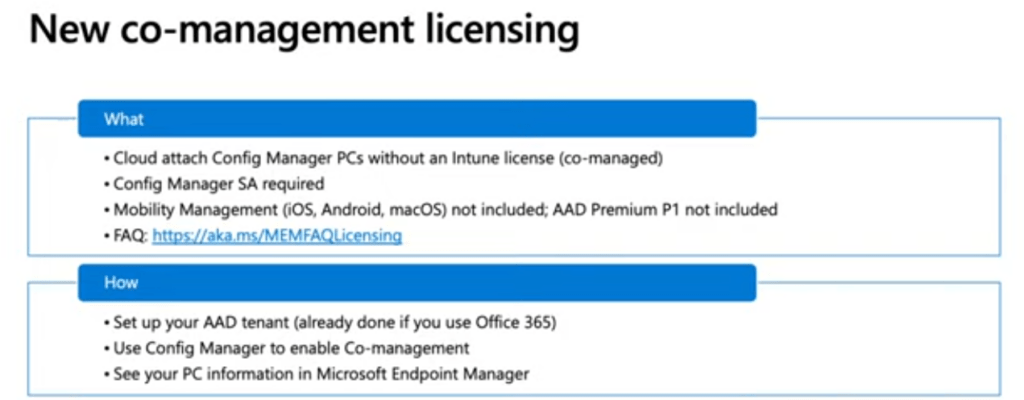
Figure 1. Licensing context for cloud-attached Configuration Manager devices. The terminology in this older slide has since changed.
2. Prerequisites I validate before opening the wizard
- Configuration Manager Current Branch is supported and updated.
- The Windows devices have a Microsoft Entra hybrid joined or Microsoft Entra joined identity.
- Users and devices are covered by the required Microsoft Intune and Entra licensing.
- The Intune MDM user scope and automatic enrollment design are understood.
- The site system and managed clients can reach the required Microsoft cloud endpoints through the proxy and firewall.
- A dedicated pilot collection exists and contains representative devices, not only IT administrator laptops.
- Existing Intune policies have been checked for conflicts with ConfigMgr client settings and baselines.
| My pilot rule Do not move all workloads at once. I first enroll a small pilot group, validate the client state, and then move one workload at a time. This makes the source of a policy conflict much easier to identify. |
3. Configure Cloud Attach
In the Configuration Manager console, open Administration, expand Cloud Services and select Cloud Attach. Start the Cloud Attach Configuration Wizard. The first page connects the site to the Microsoft tenant and enables the cloud functions required for the next steps.
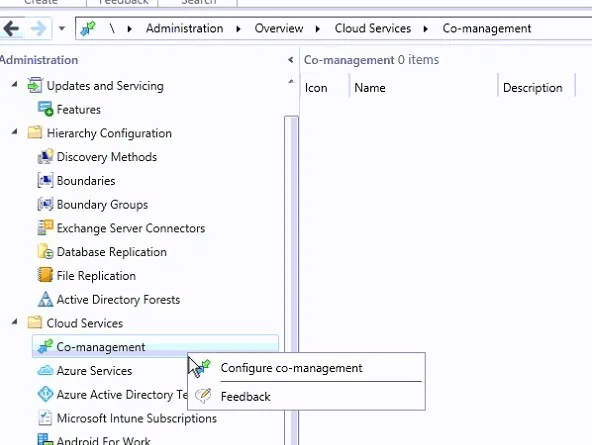
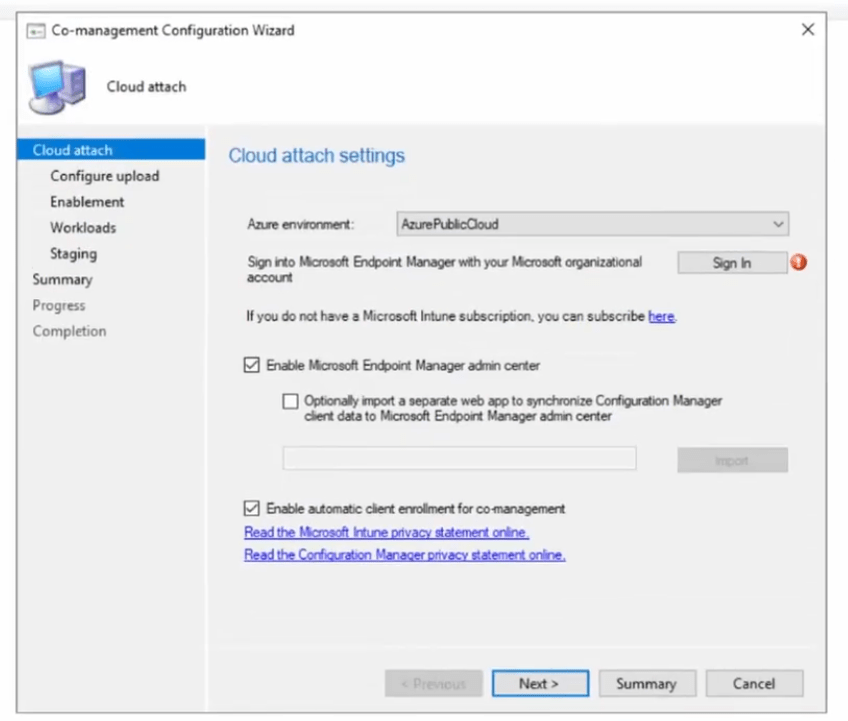
Figure 2. Cloud Attach Configuration Wizard. Tenant sign-in, Intune admin center integration and automatic client enrollment are enabled here.
| What to check before clicking Next Verify the tenant carefully. A ConfigMgr site should not be attached to the wrong test or production tenant. Also confirm that proxy inspection is not breaking authentication or access to Microsoft endpoints. |
4. Start with Pilot automatic enrollment
The Enablement page controls which ConfigMgr clients are automatically enrolled into Intune. I start with Pilot and select a dedicated device collection, in this case Co-Managed Devices. This limits the first enrollment wave and provides a clean group for troubleshooting.
The All option should only be used after the pilot devices are stable and the tenant configuration has been validated. None disables automatic enrollment. The lower section of the wizard also provides a ConfigMgr client installation command for devices that are already enrolled in Intune but do not yet have the ConfigMgr client. That is a separate onboarding direction and is not required for every existing ConfigMgr environment.
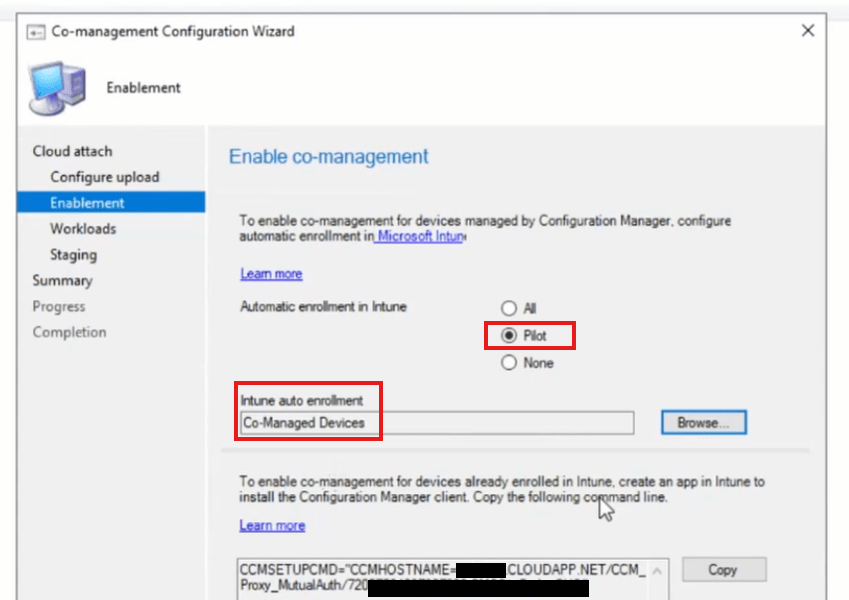
Figure 3. Automatic enrollment is configured for the pilot collection Co-Managed Devices.
5. Verify the management state in Intune
After the policy reaches the device and enrollment completes, the device record in the Intune admin center shows the current management state. The device list is one of the fastest checks because it immediately shows whether a device is Intune managed, co-managed or still only managed by ConfigMgr.
In the example below, Test02 is reported as Co-managed. Test07 is still managed by ConfigMgr and has not completed the same co-management path. This comparison is useful during a pilot because it shows that uploading a ConfigMgr device to the cloud is not the same as successfully enrolling it into Intune.
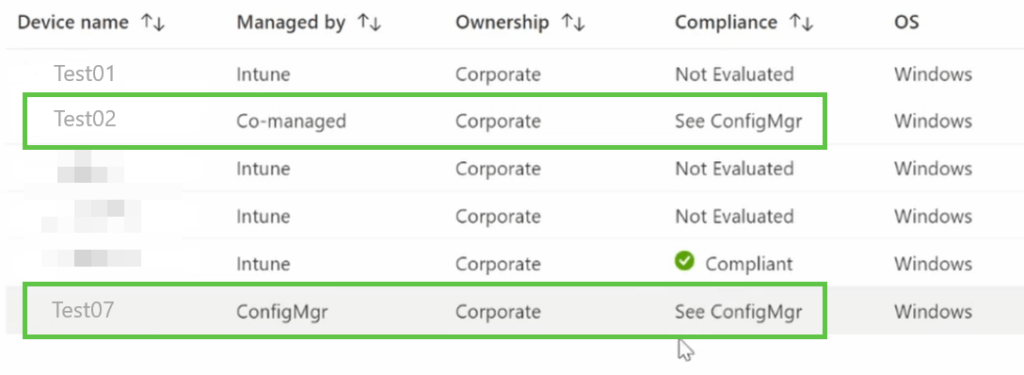
Figure 4. Intune device list showing the difference between an Intune device, a co-managed device and a ConfigMgr managed device.
| Do not rely on only one portal state The portal state can take time to update. I always confirm it with the local ConfigMgr client properties and CoManagementHandler.log before considering the device successfully onboarded. |
6. Understand the local client state
The Configuration Manager control panel applet provides a quick local status. A device can already show Co-management: Enabled while the capability value still reflects that no workloads have been moved to Intune. In the screenshot below, Co-management capabilities is 1. This is the initial state and is not the final validation for a workload migration.
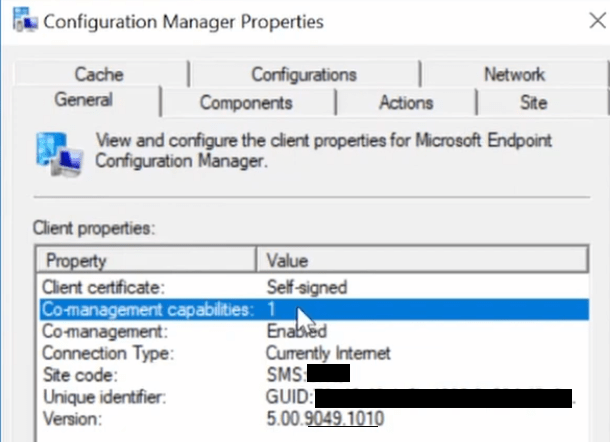
Figure 5. Initial local state: co-management is enabled, but the capability value shows that only the base co-management state is active.
7. Move workloads in a controlled order
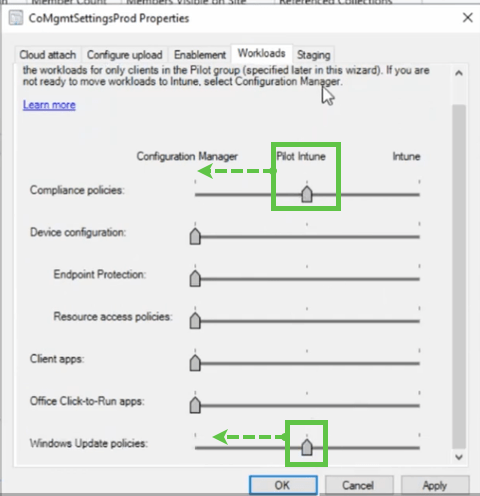
After enrollment is stable, open the properties of the Cloud Attach object and select the Workloads tab. Each slider defines the management authority for one workload. The three possible positions are Configuration Manager, Pilot Intune and Intune.
Pilot Intune applies only to the collection selected on the Staging tab. Intune moves the workload for all co-managed devices. For a production environment, I use Pilot Intune first and validate policy processing, reporting and rollback before moving the slider fully to Intune.
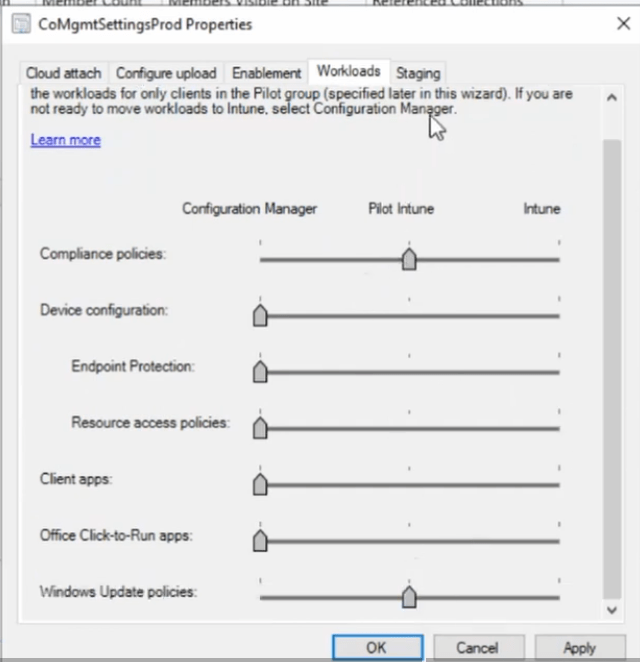
Figure 6. Workload authority is selected individually. Compliance policies and Windows Update policies are shown in Pilot Intune in this example.
Recommended order for a first pilot
Compliance policies: A good first workload because it enables Intune compliance evaluation and can later be connected to Conditional Access. Validate assigned policies and the grace period before using access controls.
Endpoint Protection: Move only after comparing Intune security policies with ConfigMgr Endpoint Protection client settings and existing security baselines.
Device Configuration: Check for duplicate settings from ConfigMgr baselines, Group Policy and Intune configuration profiles.
Windows Update policies: Validate update rings, feature update policies, deadlines, restart behavior and the ConfigMgr Software Updates client settings. Avoid two authorities managing the same update behavior.
Office Click-to-Run apps: Move after the update channel and Microsoft 365 Apps policy ownership are clearly defined.
Client Apps: Usually one of the later workloads because existing ConfigMgr application dependencies, detection methods, task sequences and maintenance windows must be reviewed first.
| Current-version note Older screenshots can still show Resource access policies. This workload is no longer part of the current migration design in the same way and should not be used as a current implementation step. Always follow the workload list shown by the supported ConfigMgr version in the environment. |
8. Assign a pilot collection for every moved workload
The Staging tab links each workload in Pilot Intune mode to a ConfigMgr device collection. The selected devices must already be enrolled into Intune. If the collection is empty, delayed or contains devices that are not eligible for enrollment, the workload will not move as expected.
For a clean implementation, separate pilot collections can be used for security, updates and applications. During a small lab test, one Co-Managed Devices collection can be sufficient, but production rollout should make it easy to stop or isolate one workload without affecting all other pilots.
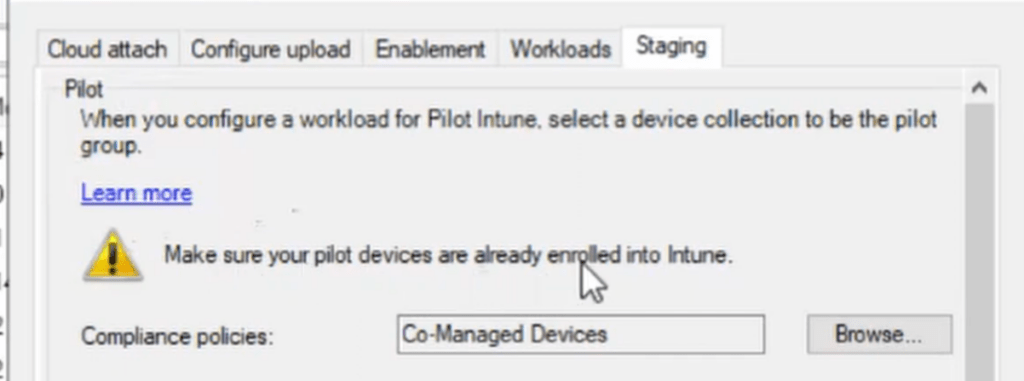
Figure 7. The Co-Managed Devices collection is selected as the pilot group for the workload.
9. Validate CoManagementHandler.log
CoManagementHandler.log is the primary ConfigMgr client log for co-management configuration. It records enrollment state, workload flags, capability values and the policy received from the site. In this example, the important line is Workload settings is different with CCM registry. Current value is 3, expected value is 19.
This does not automatically mean that co-management is broken. It shows that the workload value delivered by policy is newer than the value currently stored on the client. The following lines confirm that the registry is updated and that the device is already enrolled with MDM. After policy processing, the capability value changes to 19.
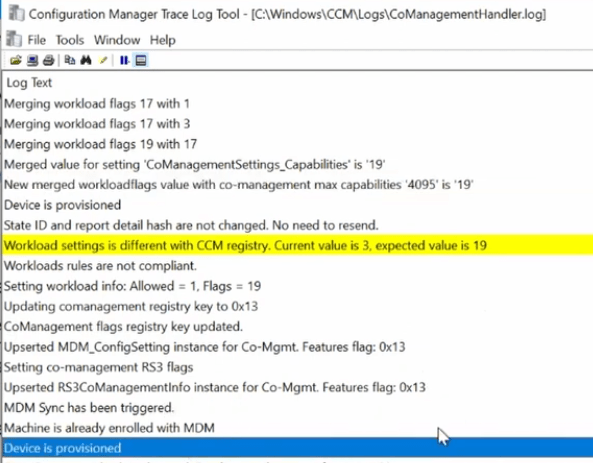
Figure 8. CoManagementHandler.log applies the new workload value and confirms that the machine is already enrolled with MDM.
10. Confirm that the workload capability changed
After the workload policy is processed, reopen Configuration Manager Properties. The capability value has changed from 1 to 19 while Co-management remains Enabled. The exact numeric value depends on the combination of workloads assigned to the client, so I do not use one hard-coded value as a universal success criterion.
The correct validation is that the value changes according to the selected workload configuration, CoManagementHandler.log reports the expected workload policy, and the Intune device record lists the same Intune-managed workloads.
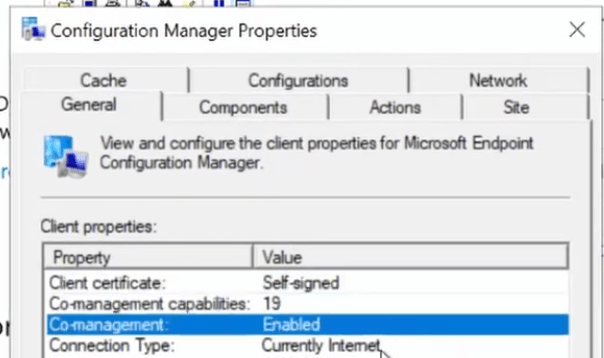
Figure 9. Updated client state after the workload policy is applied. Co-management capabilities changed from 1 to 19.
11. Validate the final device details in Intune
Open the device in the Intune admin center and review the Co-management section. The Configuration Manager agent state should be Healthy and the last agent check-in should be recent. The Intune managed workloads field shows which workload authorities Intune currently owns for the device.
In the example, Compliance Policy and Windows Update for Business are listed as Intune-managed workloads. This matches the workload selection shown earlier and completes the validation chain from the ConfigMgr wizard, through the client log and local capability value, to the final cloud state.
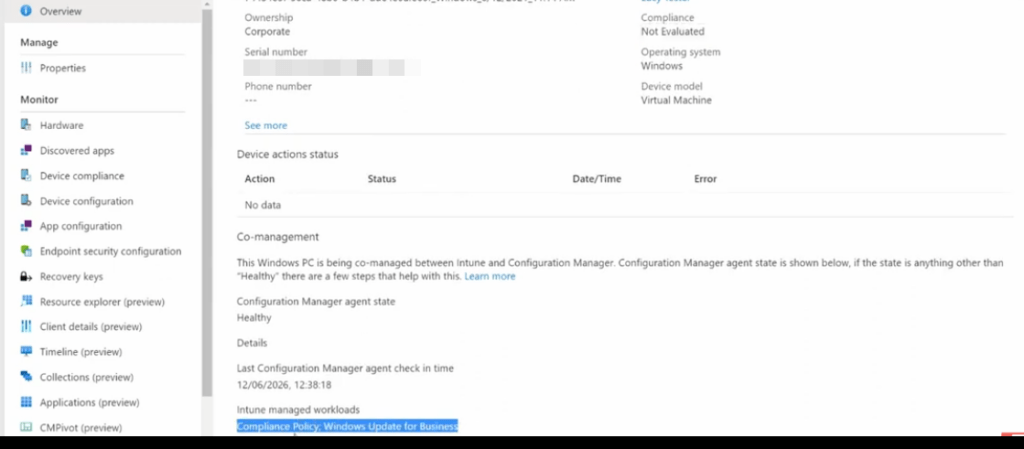
Figure 10. Final Intune validation: healthy ConfigMgr agent state and the Intune-managed workloads Compliance Policy and Windows Update for Business.
12. Minimal validation commands
I keep command-line validation short because the screenshots and client logs already provide the important evidence. These checks are useful when the portal state is delayed or when a device fails to enroll.
dsregcmd /statusUnder Device State, confirm the expected Microsoft Entra join state. Under Tenant Details and SSO State, check that the device has the correct tenant information and token state.
Get-ScheduledTask | Where-Object { $_.TaskPath -like "*EnterpriseMgmt*" } | Select-Object TaskName, State, TaskPathThis lists the Windows MDM scheduled tasks created during enrollment. If no EnterpriseMgmt tasks exist, the device has usually not completed MDM enrollment.
Get-Content "C:\Windows\CCM\Logs\CoManagementHandler.log" -Tail 100Use CMTrace for normal troubleshooting because it highlights warnings and errors more clearly. The command above is only a quick way to review the latest entries remotely or in PowerShell.
13. Common problems and what I check first
| Symptom | First check | Typical cause | Action |
| Device appears in Intune as ConfigMgr, not Co-managed | CoManagementHandler.log and MDM enrollment tasks | Tenant attach succeeded, but Intune enrollment did not | Check Entra identity, MDM scope, licensing, proxy and enrollment errors. |
| Co-management is enabled but workload does not move | Expected and current workload values in CoManagementHandler.log | Pilot collection or policy has not reached the client | Confirm collection membership, machine policy and Staging assignment. |
| Compliance shows See ConfigMgr | Compliance workload authority | Workload still owned by ConfigMgr or portal data is stale | Move the workload to Pilot Intune and allow policy plus portal processing time. |
| Windows Update behavior conflicts | WUAHandler.log, Intune update policy and ConfigMgr client settings | Update policy is being configured by more than one authority | Define one owner and remove overlapping ConfigMgr, Intune or GPO settings. |
| ConfigMgr agent state is unhealthy in Intune | Client health, last check-in and tenant attach communication | ConfigMgr client or site communication problem | Repair the client and validate MP, CMG or internet communication before moving more workloads. |
14. Rollout and rollback approach
After the pilot works, expand the collection in controlled waves. Each wave should contain different hardware models, office and internet users, VPN users and application groups. Monitor enrollment, workload status, update compliance and helpdesk incidents before moving to the next wave.
Rollback is performed by moving the affected workload back to Configuration Manager and ensuring the client receives the updated machine policy. However, moving authority back does not automatically undo every configuration already applied by Intune. Update versions, Office channels, installed applications or security settings may require separate remediation. This is why every workload needs its own test and rollback plan.
| Completion criteria A workload is not complete only because the slider points to Intune. I consider it complete when the Intune policy is assigned, the pilot devices report the expected state, ConfigMgr no longer applies an overlapping setting, monitoring is available, and rollback has been tested. |
15. Conclusion
Co-management is most useful when it is treated as a controlled migration framework, not simply as a checkbox in the Cloud Attach wizard. The critical steps are a limited automatic enrollment pilot, clear workload ownership, validation in CoManagementHandler.log and confirmation of the final workload state in Intune.
The screenshots in this guide show the full sequence: Cloud Attach, pilot enrollment, device state, workload staging, client log processing, capability change and final validation in the Intune admin center. That sequence provides enough evidence to troubleshoot the implementation without adding unnecessary scripts or hiding the important configuration steps.
Leave a Reply