
Do you manage Microsoft Surface devices with Intune? There is a surprisingly useful workspace many admins overlook: the Surface Management Portal. It brings together hardware inventory, warranty coverage, support cases, repair requests and device insights without needing a separate warranty spreadsheet.
In this guide, I cover where to find it, what it can do, the permission requirement that often blocks access, and why it is useful for endpoint operations.
1. Where is Surface Management Portal in Intune?
Open the Microsoft Intune admin center and go to All services → Surface Management Portal. Another documented navigation path is Devices → Partner Portals → Surface Management Portal. The menus may vary depending on the current Intune experience.
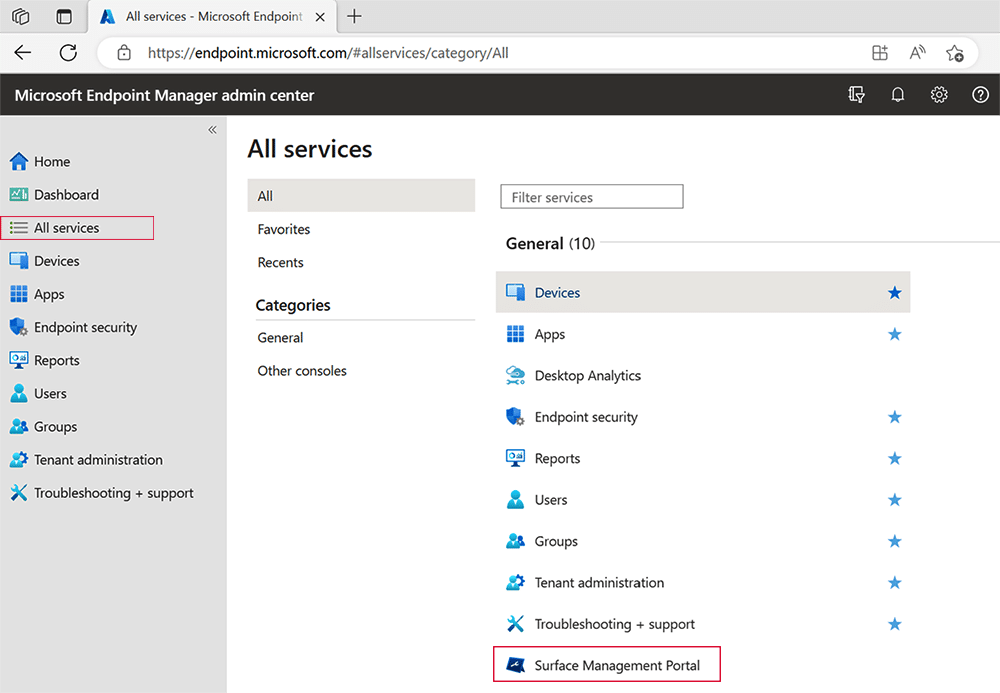
You need an eligible Intune or Microsoft 365 subscription and at least one Intune-enrolled Surface device. Microsoft states that device information flows into the portal after the enrolled device’s user signs in for the first time. No separate Surface Management Portal license is required with the qualifying subscription; Security Copilot capacity is separate.
2. Surface inventory and device health in one place
The Overview and Insights sections help administrators monitor enrolled Surface models, device health, compliance, inactive devices and support activity. Instead of reviewing isolated inventory exports, you can open focused reports from the same workspace.
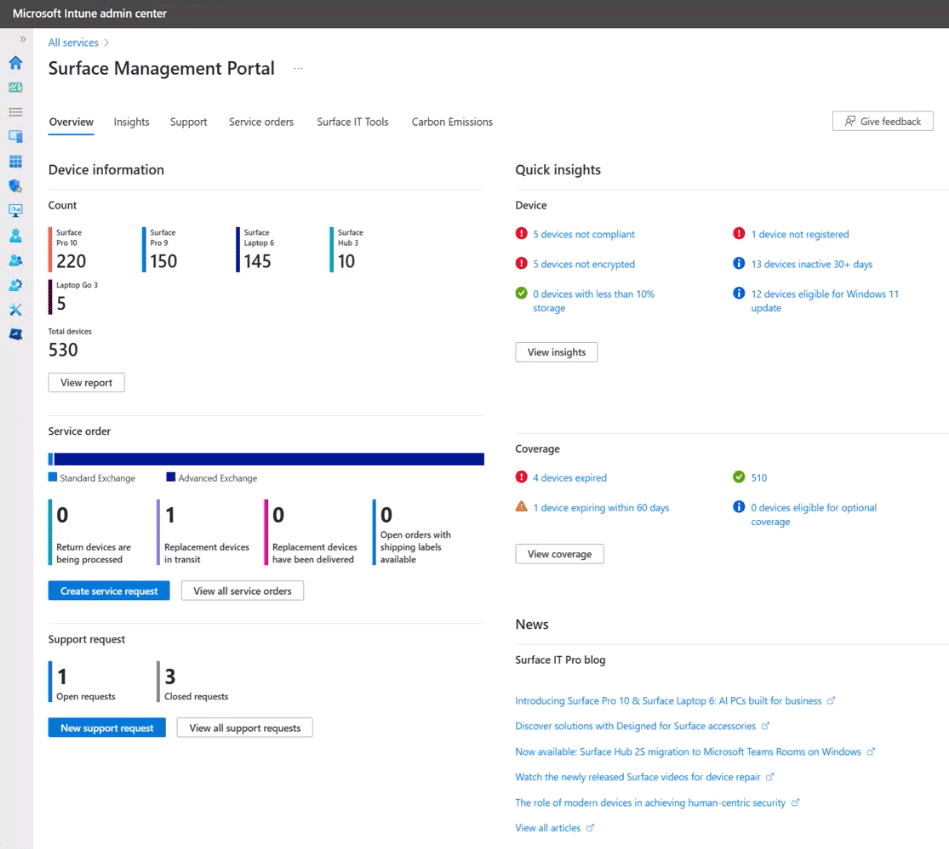
The useful starting checks are simple: review non-compliant devices, inactive Surface machines, warranty expiration and open service cases.
3. Surface warranty and coverage without spreadsheets
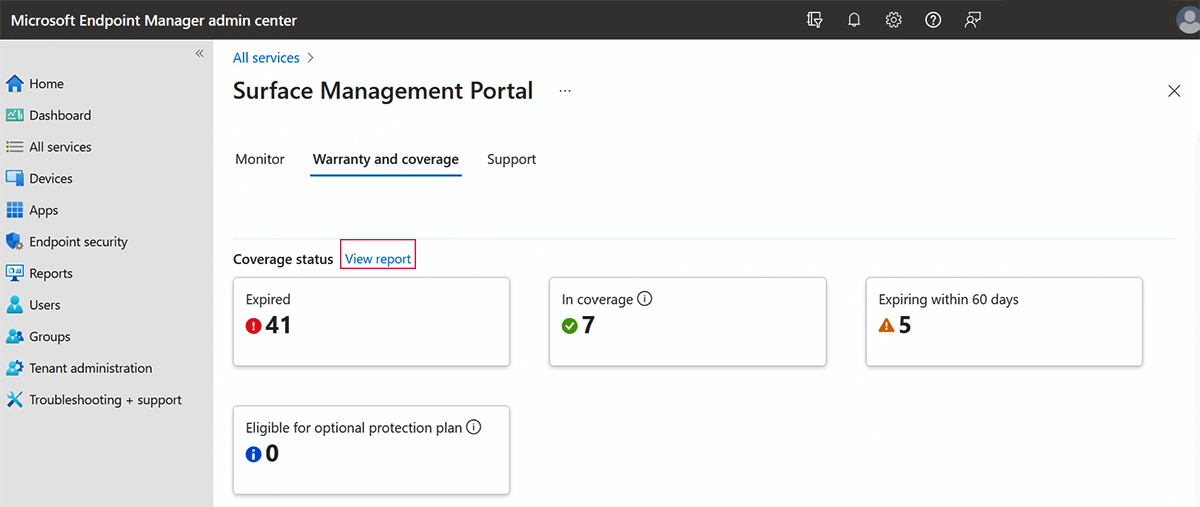
For operations teams, this is one of the biggest benefits. The portal helps identify hardware that is covered, expiring soon, expired or eligible for coverage, with links to the corresponding device reports. This is valuable for replacement planning, warranty claims and lifecycle budgets.
4. Surface support, repair and Autopilot replacement
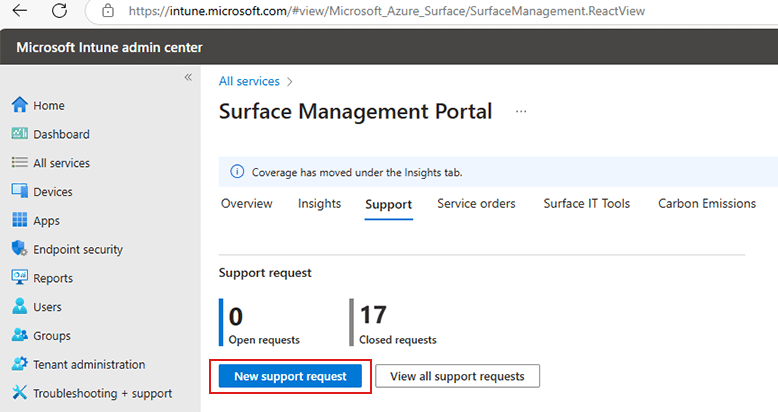
Administrators can create and track Surface support requests from the portal, and access available repair or exchange services. Exact service options depend on the product, warranty and region.
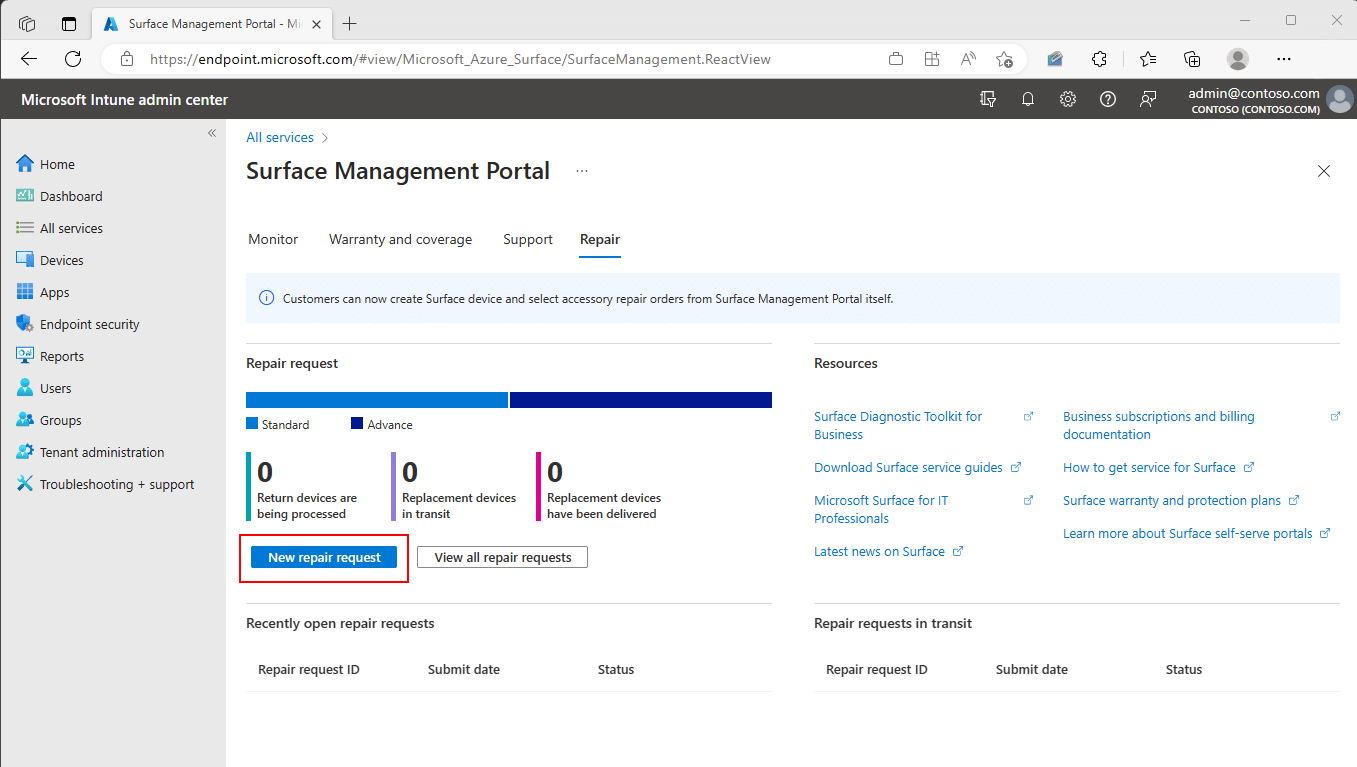
Useful Windows Autopilot detail: for eligible Surface device exchange orders made directly through Microsoft, Microsoft documents handling Autopilot deregistration of the returned device and registration of its replacement. When an exchange is handled through a partner, the partner manages that process. Microsoft Autopilot guidance.
5. Intune Surface portal roles: check Global Reader
Do not grant Global Administrator just to work with Surface support cases. Microsoft recommends dedicated roles such as Microsoft Hardware Warranty Administrator or Microsoft Hardware Warranty Specialist.
Important: To use these Surface-specific roles in the Surface Management Portal, Microsoft requires the Global Reader role as well. Missing it is a common reason for access problems. See Microsoft’s role reference.
6. Security Copilot in the Surface Management Portal
Microsoft Security Copilot can provide natural-language answers about Surface fleet issues, warranty status and end-of-servicing dates. Example prompts include generating a warranty coverage report or listing Surface model end-of-service dates.
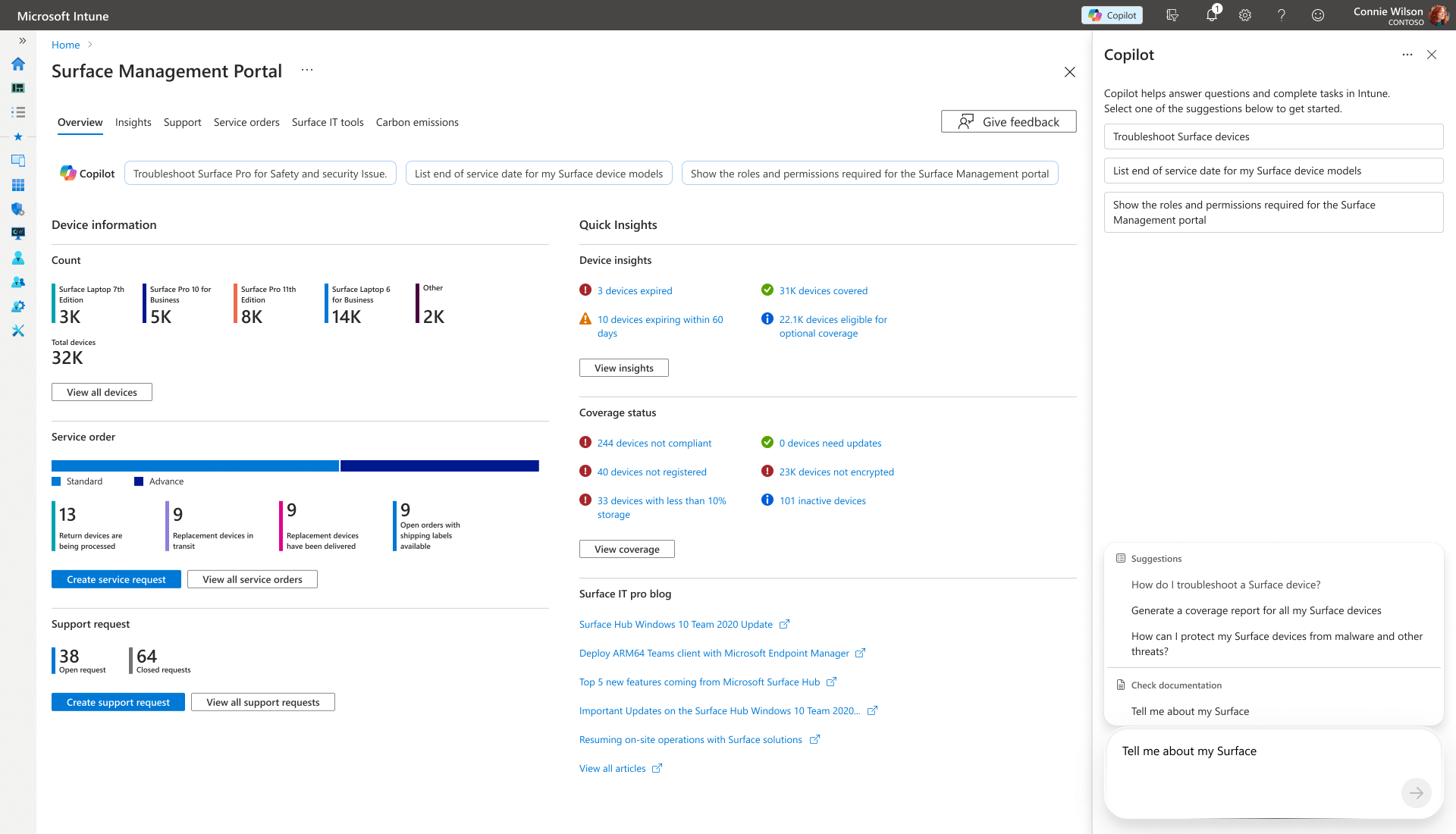
This integration requires access to Security Copilot and sufficient Security Compute Units (SCUs); it is not automatically available free with every Intune tenant. Official Copilot requirements.
Should IT admins start using it?
If you manage a Surface fleet, the answer is yes: start with warranty coverage, inactive devices and support requests. Surface Management Portal does not replace Microsoft Intune; it fills a practical Surface hardware management gap around support and lifecycle reporting.
For broader modern endpoint management, see my related article on moving from Configuration Manager to Intune.
Leave a Reply