
Enterprise blog draft using Marko Nisic package method
| Important about this version This document follows the requested package method: download Get-UEFICertificate.ps1 from PowerShell Gallery once, place it into the SCCM package source together with My v1.7 rollout script, copy it locally to C:\Windows\CCM\Logs\UEFI_CA_Update on the endpoint, and use a 0 or 1 ConfigMgr compliance detection script for monitoring. |
1. Introduction
UEFI Secure Boot is a firmware security feature that helps ensure that only trusted, digitally signed software is allowed to run during the early boot process. It validates firmware components, boot loaders and boot applications before Windows starts. This matters because bootkits and other low level malware attempt to run before the operating system and endpoint protection are fully active.
Microsoft Secure Boot certificates originally issued in 2011 are approaching expiration in 2026. Microsoft is introducing updated 2023 certificates so Windows devices can continue to receive future Secure Boot related protections, boot manager updates, Secure Boot database updates, revocation updates and mitigations for newly discovered boot level vulnerabilities.
The new trust chain includes certificates such as Microsoft Corporation KEK 2K CA 2023, Windows UEFI CA 2023, Microsoft UEFI CA 2023 and Microsoft Option ROM UEFI CA 2023. From an enterprise perspective, this is not just another monthly patch. It is a firmware trust chain lifecycle update. Windows can orchestrate the process, but the device firmware must be able to process and store the updated Secure Boot variables.

2. What happens if you do nothing?
The correct message is important. Devices without the 2023 certificates do not immediately stop booting, and normal Windows updates do not immediately stop installing. Microsoft states that devices without the newer 2023 certificates will continue to start and operate normally, and standard Windows updates will continue to install.
The real risk is that these devices will no longer receive the full set of new security protections for the early boot process. This can include future updates to Windows Boot Manager, Secure Boot databases, revocation lists and mitigations for newly discovered boot level vulnerabilities. Over time this reduces protection against bootkits, rootkits and other low level attacks.
Scenarios relying on Secure Boot trust, BitLocker hardening, Credential Guard, virtualization based security and third party bootloaders may also be affected depending on platform state and firmware support. In enterprise environments, outdated Secure Boot certificate state can create compliance, audit and reporting gaps.
Microsoft: Windows Secure Boot certificate expiration and CA updates
3. Prerequisites and scope
Before rollout, validate operating system support, firmware mode, Secure Boot status, patch level and OEM firmware readiness. The update applies to supported Windows client and server platforms, including Windows 10 supported editions, Windows 11 supported versions, Windows Server 2016, Windows Server 2019, Windows Server 2022 and Windows Server 2025. Older server versions should only be mentioned where Microsoft explicitly documents ESU support.
- UEFI boot mode is required.
- Secure Boot must be enabled.
- Latest cumulative updates should be installed.
- Latest BIOS or UEFI firmware should be installed.
- BitLocker recovery keys must be backed up before broad rollout.
- OEM support must be verified by manufacturer, model and BIOS version.
- Do not list TPM 2.0 as a general hard prerequisite unless the OEM or server guidance for that platform explicitly requires it.
Secure Boot certificate updates are firmware dependent. Windows can trigger the update, but firmware must support storing and processing the updated Secure Boot variables. This is why BIOS validation is a mandatory part of the rollout strategy.
Microsoft: Secure Boot troubleshooting guide
4. Important operational warnings before rollout
4.1 BitLocker recovery keys must be backed up
Before enabling or triggering the Secure Boot 2023 CA update at scale, verify that BitLocker recovery keys are escrowed correctly in Active Directory, Microsoft Entra ID, MBAM, Intune or the organization key management solution. Secure Boot changes, firmware changes, boot manager updates and BIOS updates can trigger BitLocker recovery in some scenarios.
4.2 Pilot by manufacturer, model and BIOS version
Do not test only on random devices. The pilot should include representative hardware groups by vendor, model and BIOS or UEFI firmware version. The same Windows configuration can behave differently depending on firmware implementation and OEM support.
- Dell Latitude, OptiPlex and Precision models
- HP EliteBook, ProBook, EliteDesk and workstation models
- Lenovo ThinkPad, ThinkCentre and ThinkStation models
- Workstations
- Servers
- Virtual machines where Secure Boot is enabled
4.3 Do not mix SCCM, Intune, GPO and registry ownership
Choose one primary rollout method per device group. Mixing Intune policy, GPO policy and manual registry activation on the same device can make troubleshooting harder and can create unclear ownership of the rollout state.

5. Manual checks before building the rollout
Run these checks as Administrator on a pilot device.
Confirm-SecureBootUEFI

Get-ComputerInfo | Select-Object BiosFirmwareType

Get-ItemProperty -Path "HKLM:\SYSTEM\CurrentControlSet\Control\SecureBoot\Servicing" -ErrorAction SilentlyContinue |
Select-Object UEFICA2023Status, UEFICA2023Error, UEFICA2023ErrorEvent, WindowsUEFICA2023Capable

([System.Text.Encoding]::ASCII.GetString((Get-SecureBootUEFI db).bytes) -match "Windows UEFI CA 2023")
For deep certificate validation, this method uses Get-UEFICertificate.ps1 from PowerShell Gallery. It can query PK, KEK, DB and DBX. In this rollout design the script is downloaded once and included in the SCCM package source so endpoints do not need NuGet, PowerShellGet or internet access.
6. Prepare the offline SCCM package source
This is the requested package method. The PowerShell Gallery script is downloaded once on an internet connected admin workstation or server. After that, Get-UEFICertificate.ps1 is placed into the SCCM package source together with My rollout script. The endpoint receives both files from the ConfigMgr distribution point.
6.1 Package source structure
Server\\CMSource\Packages\UEFI_SecureBoot_CA_2023\


    Get-UEFICertificate.ps1
    Install-SecureBoot-UEFI-CA-2023-Update_v1.7.ps1
6.2 Download Get-UEFICertificate.ps1 once
Use one of the following methods. Save-Script is the cleanest option because it writes the script directly into the package source folder. Install-Script is also included for environments where that process is preferred.
# Run this only once on an internet connected admin workstation or server.
# The endpoint clients should not download anything from PSGallery.

$PackageSource = "C:\Temp\UEFI_SecureBoot_CA_2023_PackageSource"
New-Item -Path $PackageSource -ItemType Directory -Force | Out-Null

# Option 1: Save the script directly into the package source folder
Save-Script -Name Get-UEFICertificate -Path $PackageSource -Force

# Option 2: If your process requires Install-Script instead of Save-Script
Install-Script -Name Get-UEFICertificate -Scope CurrentUser -Force
$InstalledScript = (Get-Command Get-UEFICertificate.ps1 -ErrorAction Stop).Source
Copy-Item -Path $InstalledScript -Destination (Join-Path $PackageSource "Get-UEFICertificate.ps1") -Force

# Copy My rollout script into the same source folder
# Install-SecureBoot-UEFI-CA-2023-Update_v1.7.ps1

Get-ChildItem $PackageSource
| Script signing If your environment enforces AllSigned or requires signed scripts, sign Get-UEFICertificate.ps1 and Install-SecureBoot-UEFI-CA-2023-Update_v1.7.ps1 before distributing the package. Do not rely on ExecutionPolicy Bypass if your customer policy does not allow it. |
7. SCCM implementation
7.1 Hardware inventory and readiness collections
ConfigMgr must have firmware inventory data before collection targeting is reliable. Use SMS_G_System_FIRMWARE where available. The important properties are UEFI and SecureBoot. Run or wait for hardware inventory before evaluating readiness collections.

Create this collection folder:
UEFI_SecureBoot_CA_2023_UpdateUEFI_CA_Update_UEFI_ON
Purpose: Devices booting in UEFI mode.
select SMS_R_SYSTEM.ResourceID,SMS_R_SYSTEM.ResourceType,SMS_R_SYSTEM.Name,SMS_R_SYSTEM.SMSUniqueIdentifier,SMS_R_SYSTEM.ResourceDomainORWorkgroup,SMS_R_SYSTEM.Client
from SMS_R_System
inner join SMS_G_System_FIRMWARE on SMS_G_System_FIRMWARE.ResourceID = SMS_R_System.ResourceId
where SMS_G_System_FIRMWARE.UEFI = 1
UEFI_CA_Update_UEFI_OFF
Purpose: Devices not booting in UEFI mode.
select SMS_R_SYSTEM.ResourceID,SMS_R_SYSTEM.ResourceType,SMS_R_SYSTEM.Name,SMS_R_SYSTEM.SMSUniqueIdentifier,SMS_R_SYSTEM.ResourceDomainORWorkgroup,SMS_R_SYSTEM.Client
from SMS_R_System
inner join SMS_G_System_FIRMWARE on SMS_G_System_FIRMWARE.ResourceID = SMS_R_System.ResourceId
where SMS_G_System_FIRMWARE.UEFI = 0
UEFI_CA_Update_SecureBoot_ON
Purpose: Devices with Secure Boot enabled.
select SMS_R_SYSTEM.ResourceID,SMS_R_SYSTEM.ResourceType,SMS_R_SYSTEM.Name,SMS_R_SYSTEM.SMSUniqueIdentifier,SMS_R_SYSTEM.ResourceDomainORWorkgroup,SMS_R_SYSTEM.Client
from SMS_R_System
inner join SMS_G_System_FIRMWARE on SMS_G_System_FIRMWARE.ResourceID = SMS_R_System.ResourceId
where SMS_G_System_FIRMWARE.SecureBoot = 1
UEFI_CA_Update_SecureBoot_OFF
Purpose: Devices with Secure Boot disabled.
select SMS_R_SYSTEM.ResourceID,SMS_R_SYSTEM.ResourceType,SMS_R_SYSTEM.Name,SMS_R_SYSTEM.SMSUniqueIdentifier,SMS_R_SYSTEM.ResourceDomainORWorkgroup,SMS_R_SYSTEM.Client
from SMS_R_System
inner join SMS_G_System_FIRMWARE on SMS_G_System_FIRMWARE.ResourceID = SMS_R_System.ResourceId
where SMS_G_System_FIRMWARE.SecureBoot = 0
UEFI_CA_Update_Ready
Purpose: Devices ready because UEFI and Secure Boot are enabled.
select SMS_R_SYSTEM.ResourceID,SMS_R_SYSTEM.ResourceType,SMS_R_SYSTEM.Name,SMS_R_SYSTEM.SMSUniqueIdentifier,SMS_R_SYSTEM.ResourceDomainORWorkgroup,SMS_R_SYSTEM.Client
from SMS_R_System
inner join SMS_G_System_FIRMWARE on SMS_G_System_FIRMWARE.ResourceID = SMS_R_System.ResourceId
where SMS_G_System_FIRMWARE.UEFI = 1
and SMS_G_System_FIRMWARE.SecureBoot = 1
UEFI_CA_Update_NotReady
Purpose: Devices not ready because UEFI is disabled or Secure Boot is disabled.
Purpose: Devices not ready because UEFI is disabled or Secure Boot is disabled.
select SMS_R_SYSTEM.ResourceID,SMS_R_SYSTEM.ResourceType,SMS_R_SYSTEM.Name,SMS_R_SYSTEM.SMSUniqueIdentifier,SMS_R_SYSTEM.ResourceDomainORWorkgroup,SMS_R_SYSTEM.Client
from SMS_R_System
inner join SMS_G_System_FIRMWARE on SMS_G_System_FIRMWARE.ResourceID = SMS_R_System.ResourceId
where SMS_G_System_FIRMWARE.UEFI = 0
or SMS_G_System_FIRMWARE.SecureBoot = 0
Alternative for UEFI_CA_Update_NotReady:
create a collection with include rules for UEFI_CA_Update_UEFI_OFF and UEFI_CA_Update_SecureBoot_OFF

7.2 SCCM package
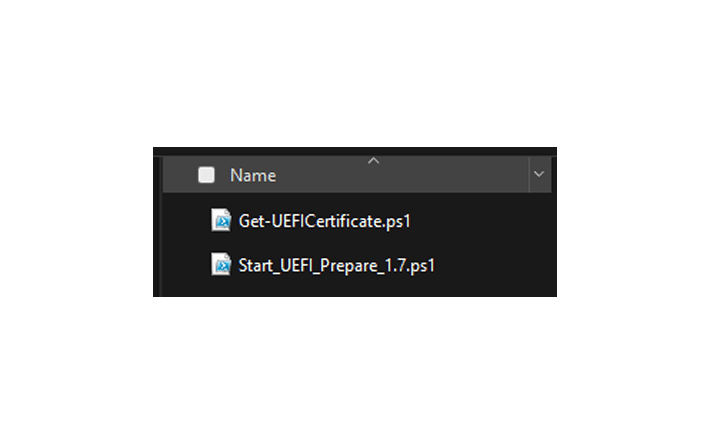
Create a standard ConfigMgr package. This is not an application model package unless your environment requires it. The package source folder must contain both files listed earlier.
| Setting | Value |
| Package name | PKG – Trigger Secure Boot 2023 CA Update |
| Program name | Install Secure Boot 2023 CA Update |
| Command line | powershell.exe -NoProfile -ExecutionPolicy Bypass -File .\Install-SecureBoot-UEFI-CA-2023-Update_v1.7.ps1 |
| Run | Whether or not a user is logged on |
| Run mode | Run with administrative rights |
| User context | SYSTEM |
| Distribution | Distribute to normal production DPs before pilot deployment |
Deploy the package first to Ring 0 and Ring 1. After validation, expand to the Ready collection. The package copies Get-UEFICertificate.ps1 to C:\Windows\CCM\Logs\UEFI_CA_Update, runs it before reboot, sets AvailableUpdates to 0x5944, starts the Microsoft Secure-Boot-Update task, creates a one time startup helper task for post reboot validation, and removes that helper task after it runs.
The helper task created by the v1.7 script is intentionally one time after reboot. It self deletes immediately at the beginning of the post reboot script. The Microsoft task \Microsoft\Windows\PI\Secure-Boot-Update is separate and is part of Windows.
Install-SecureBoot-UEFI-CA-2023-Update_v1.7.ps1
############################################################
# Script: Install Secure Boot UEFI CA 2023 Update
# Author: Marko Nisic
# Company: IT
# Version: 1.7
# Date: 01.01.2026
############################################################

############################################################
# Base configuration and logging
############################################################

$BaseFolder = "C:\Windows\CCM\Logs\UEFI_CA_Update"
$LogPath = Join-Path $BaseFolder "Get-UEFI_CA_Info.log"

function Write-Log {
    param(
        [string]$Message,
        [string]$Level = "INFO"
    )

    $ts = Get-Date -Format "yyyy-MM-dd HH:mm:ss.fff"
    $line = "$ts [$Level] $Message"

    if (-not (Test-Path $BaseFolder)) {
        New-Item -Path $BaseFolder -ItemType Directory -Force | Out-Null
    }

    Add-Content -Path $LogPath -Value $line -Encoding UTF8
}

############################################################
# Ensure base folder exists
############################################################

if (-not (Test-Path $BaseFolder)) {
    New-Item -Path $BaseFolder -ItemType Directory -Force | Out-Null
}

Write-Log "Script start"

############################################################
# Copy Get-UEFICertificate script locally and execute it
############################################################

$ScriptDir = Split-Path -Parent $MyInvocation.MyCommand.Path
$PackageUEFIScript = Join-Path $ScriptDir "Get-UEFICertificate.ps1"
$LocalUEFIScript = Join-Path $BaseFolder "Get-UEFICertificate.ps1"

if (Test-Path $PackageUEFIScript) {
    try {
        Copy-Item -Path $PackageUEFIScript -Destination $LocalUEFIScript -Force
        Write-Log "Copied Get-UEFICertificate.ps1 to local folder: $LocalUEFIScript"
    }
    catch {
        Write-Log "Failed to copy Get-UEFICertificate.ps1. Error: $($_.Exception.Message)" "ERROR"
    }
}
else {
    Write-Log "Get-UEFICertificate.ps1 not found in package path: $PackageUEFIScript" "ERROR"
}

if (Test-Path $LocalUEFIScript) {
    try {
        Write-Log "Executing Get-UEFICertificate script pre reboot"
        & $LocalUEFIScript | Out-File -FilePath (Join-Path $BaseFolder "Get-UEFICertificate-Current-output.log") -Append -Encoding UTF8
    }
    catch {
        Write-Log "Execution failed. Error: $($_.Exception.Message)" "ERROR"
    }
}
else {
    Write-Log "Local Get-UEFICertificate.ps1 not found after copy" "ERROR"
}

############################################################
# Read Secure Boot CA 2023 status
############################################################

function Get-UEFICA2023Status {
    try {
        (Get-ItemProperty -Path "HKLM:\SYSTEM\CurrentControlSet\Control\SecureBoot\Servicing" -Name "UEFICA2023Status").UEFICA2023Status
    }
    catch {
        "<missing>"
    }
}

$statusBefore = Get-UEFICA2023Status
Write-Log "UEFICA2023Status before change: $statusBefore"

############################################################
# Trigger Secure Boot update
############################################################

try {
    New-ItemProperty -Path "HKLM:\SYSTEM\CurrentControlSet\Control\SecureBoot" -Name "AvailableUpdates" -Value 0x5944 -PropertyType DWord -Force | Out-Null
    Write-Log "Registry value set: HKLM:\SYSTEM\CurrentControlSet\Control\SecureBoot\AvailableUpdates = 0x5944"
}
catch {
    Write-Log "Failed to set AvailableUpdates registry value. Error: $($_.Exception.Message)" "ERROR"
}

Start-Sleep -Seconds 10

$task = Get-ScheduledTask -TaskName "Secure-Boot-Update" -TaskPath "\Microsoft\Windows\PI\" -ErrorAction SilentlyContinue

if ($task) {
    try {
        Start-ScheduledTask -TaskName "Secure-Boot-Update" -TaskPath "\Microsoft\Windows\PI\"
        Write-Log "Secure-Boot-Update task started"
    }
    catch {
        Write-Log "Failed to start Secure-Boot-Update task. Error: $($_.Exception.Message)" "ERROR"
    }
}
else {
    Write-Log "Secure-Boot-Update task not found" "ERROR"
}

Start-Sleep -Seconds 10

$statusAfter = Get-UEFICA2023Status
Write-Log "UEFICA2023Status after triggering task: $statusAfter"

############################################################
# Create trigger script for post reboot validation
############################################################

$TriggerScriptPath = Join-Path $BaseFolder "trigger_uefi_ca.ps1"
$TriggerLogPath = Join-Path $BaseFolder "Check_UEFI_CA_Update.log"
$HelperTaskName = "Trigger UEFI CA update once after reboot"
$HelperTaskPath = "\"

$triggerContent = @'
############################################################
# Trigger script | post reboot validation
############################################################

$BaseFolder = "__BASE_FOLDER__"
$LogPath = "__TRIGGER_LOG_PATH__"
$HelperTaskName = "__HELPER_TASK_NAME__"
$HelperTaskPath = "\"

function Write-Log {
    param(
        [string]$Message,
        [string]$Level = "INFO"
    )

    $ts = Get-Date -Format "yyyy-MM-dd HH:mm:ss.fff"
    $line = "$ts [$Level] $Message"

    if (-not (Test-Path $BaseFolder)) {
        New-Item -Path $BaseFolder -ItemType Directory -Force | Out-Null
    }

    Add-Content -Path $LogPath -Value $line -Encoding UTF8
}

function Remove-HelperScheduledTask {
    try {
        $existingTask = Get-ScheduledTask -TaskName $HelperTaskName -TaskPath $HelperTaskPath -ErrorAction SilentlyContinue

        if ($existingTask) {
            Unregister-ScheduledTask -TaskName $HelperTaskName -TaskPath $HelperTaskPath -Confirm:$false -ErrorAction Stop
            Write-Log "Helper scheduled task removed successfully: $HelperTaskName"
        }
        else {
            Write-Log "Helper scheduled task was not found. Nothing to remove: $HelperTaskName"
        }
    }
    catch {
        Write-Log "PowerShell task cleanup failed. Error: $($_.Exception.Message)" "ERROR"

        try {
            $schtasks = Join-Path $env:SystemRoot "System32\schtasks.exe"
            $taskNameForSchtasks = "$HelperTaskPath$HelperTaskName"
            $p = Start-Process -FilePath $schtasks -ArgumentList @("/Delete", "/F", "/TN", $taskNameForSchtasks) -NoNewWindow -PassThru -Wait
            Write-Log "Fallback schtasks cleanup executed. ExitCode=$($p.ExitCode)"
        }
        catch {
            Write-Log "Fallback schtasks cleanup failed. Error: $($_.Exception.Message)" "ERROR"
        }
    }
}

function Get-UEFICA2023Status {
    try {
        (Get-ItemProperty -Path "HKLM:\SYSTEM\CurrentControlSet\Control\SecureBoot\Servicing" -Name "UEFICA2023Status").UEFICA2023Status
    }
    catch {
        "<missing>"
    }
}

Write-Log "Trigger script start"

############################################################
# Self cleanup immediately to make sure this runs only once
############################################################

Remove-HelperScheduledTask

############################################################
# Re-run Secure Boot update after reboot
############################################################

$s1 = Get-UEFICA2023Status
Write-Log "UEFICA2023Status before rerun: $s1"

Start-Sleep -Seconds 10

$secureBootTask = Get-ScheduledTask -TaskName "Secure-Boot-Update" -TaskPath "\Microsoft\Windows\PI\" -ErrorAction SilentlyContinue

if ($secureBootTask) {
    try {
        Start-ScheduledTask -TaskName "Secure-Boot-Update" -TaskPath "\Microsoft\Windows\PI\"
        Write-Log "Secure-Boot-Update task triggered again"
    }
    catch {
        Write-Log "Failed to trigger Secure-Boot-Update after reboot. Error: $($_.Exception.Message)" "ERROR"
    }
}
else {
    Write-Log "Secure-Boot-Update task not found after reboot" "ERROR"
}

Start-Sleep -Seconds 10

$s2 = Get-UEFICA2023Status
Write-Log "UEFICA2023Status after rerun: $s2"

############################################################
# Run Get-UEFICertificate after reboot and validate result
############################################################

$LocalUEFIScript = Join-Path $BaseFolder "Get-UEFICertificate.ps1"
$RebootOutputLog = Join-Path $BaseFolder "Get-UEFICertificate-Reboot-Output.log"

if (Test-Path $LocalUEFIScript) {
    try {
        Write-Log "Executing Get-UEFICertificate after reboot"
        $output = & $LocalUEFIScript
        $output | Out-File -FilePath $RebootOutputLog -Append -Encoding UTF8
        Write-Log "Reboot output saved to $RebootOutputLog"

        if ($output -match "2023") {
            Write-Log "UEFI CA 2023 detected after reboot" "SUCCESS"
        }
        else {
            Write-Log "UEFI CA 2023 NOT detected after reboot" "ERROR"
        }
    }
    catch {
        Write-Log "Execution failed after reboot. Error: $($_.Exception.Message)" "ERROR"
    }
}
else {
    Write-Log "Get-UEFICertificate script not found for validation" "ERROR"
}

############################################################
# Final cleanup verification
############################################################

$taskStillExists = Get-ScheduledTask -TaskName $HelperTaskName -TaskPath $HelperTaskPath -ErrorAction SilentlyContinue

if ($taskStillExists) {
    Write-Log "Helper scheduled task still exists after initial cleanup. Running final cleanup attempt." "WARNING"
    Remove-HelperScheduledTask
}
else {
    Write-Log "Helper scheduled task cleanup verified"
}

Write-Log "Trigger script end"
'@

$triggerContent = $triggerContent.Replace("__BASE_FOLDER__", $BaseFolder)
$triggerContent = $triggerContent.Replace("__TRIGGER_LOG_PATH__", $TriggerLogPath)
$triggerContent = $triggerContent.Replace("__HELPER_TASK_NAME__", $HelperTaskName)

Set-Content -Path $TriggerScriptPath -Value $triggerContent -Encoding UTF8 -Force
Write-Log "Trigger script created: $TriggerScriptPath"

############################################################
# Create scheduled task for next startup only
############################################################

try {
    $existingHelperTask = Get-ScheduledTask -TaskName $HelperTaskName -TaskPath $HelperTaskPath -ErrorAction SilentlyContinue

    if ($existingHelperTask) {
        Unregister-ScheduledTask -TaskName $HelperTaskName -TaskPath $HelperTaskPath -Confirm:$false -ErrorAction Stop
        Write-Log "Existing helper scheduled task removed before creating a new one: $HelperTaskName"
    }
}
catch {
    Write-Log "Failed to remove existing helper scheduled task before recreation. Error: $($_.Exception.Message)" "ERROR"
}

try {
    $PowerShellExe = Join-Path $env:SystemRoot "System32\WindowsPowerShell\v1.0\powershell.exe"
    $TaskAction = New-ScheduledTaskAction -Execute $PowerShellExe -Argument "-NoProfile -ExecutionPolicy Bypass -File ""$TriggerScriptPath"""
    $TaskTrigger = New-ScheduledTaskTrigger -AtStartup
    $TaskPrincipal = New-ScheduledTaskPrincipal -UserId "SYSTEM" -LogonType ServiceAccount -RunLevel Highest
    $TaskSettings = New-ScheduledTaskSettingsSet -StartWhenAvailable -AllowStartIfOnBatteries -DontStopIfGoingOnBatteries -MultipleInstances IgnoreNew

    Register-ScheduledTask -TaskName $HelperTaskName -TaskPath $HelperTaskPath -Action $TaskAction -Trigger $TaskTrigger -Principal $TaskPrincipal -Settings $TaskSettings -Force | Out-Null

    Write-Log "Scheduled task created for next startup: $HelperTaskName"
}
catch {
    Write-Log "Failed to create helper scheduled task. Error: $($_.Exception.Message)" "ERROR"
}

############################################################
# End
############################################################

Write-Log "Script end"
7.3 SCCM Compliance Baseline with 0 or 1 detection
This baseline is monitoring only. It does not remediate. It checks whether Microsoft Corporation KEK 2K CA 2023 is visible through the locally copied Get-UEFICertificate.ps1 script. Because the detection script depends on C:\Windows\CCM\Logs\UEFI_CA_Update\Get-UEFICertificate.ps1, deploy the package first so the file exists locally.
| Configuration Item setting | Value |
| Name | CI – SecureBoot UEFI CA 2023 KEK Detection |
| Setting type | Script |
| Data type | Integer |
| Discovery script language | Windows PowerShell |
| Remediation script | None |
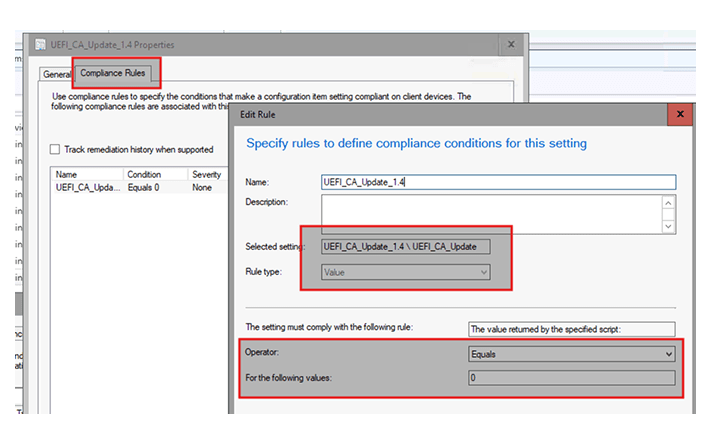
| Compliance rule | The value returned by the specified script equals 0 |
Detection script – CI
############################################################
# Script: Detect if Secure Boot UEFI CA 2023 Update Is Up To Date
# Author: Marko Nisic
# Company: IT
# Version: 1.7
# Date: 01.01.2026
############################################################
# 0 = KEK CA 2023 found
# 1 = not found or cannot be evaluated
############################################################
$UEFIScript = "C:\windows\CCM\Logs\UEFI_CA_Update\Get-UEFICertificate.ps1"
$result = 1
try {

    $kekCerts = powershell.exe -ep bypass -file $UEFIScript -Type KEK -ErrorAction Stop
    if ($kekCerts -like "*Microsoft Corporation KEK 2K CA 2023*" ) {

        $result = 0

    }

}

catch {

    $result = 1

}
$result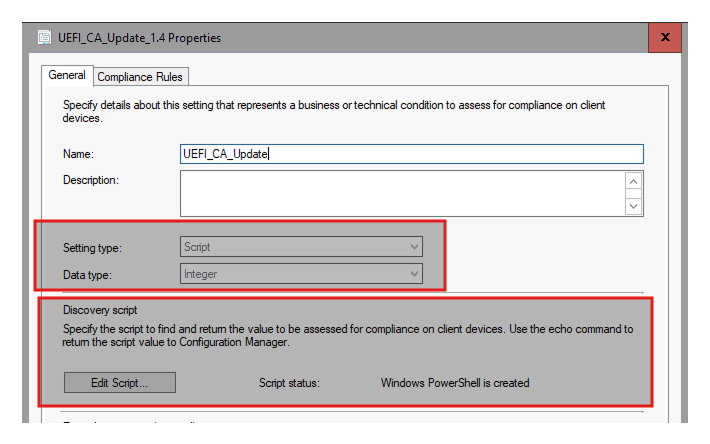
Create the baseline:
| Baseline setting | Value |
| Name | CB – SecureBoot_CA2023_Update |
| Included CI | CI – SecureBoot UEFI CA 2023 KEK Detection |
| Deployment collection | Start with Ring 0 or UEFI_CA_Update_Ready pilot collection |
| Evaluation schedule | Once per day during rollout |
Compliance and non compliance collections
After deploying the baseline, create operational collections from the baseline deployment state. The safest method is to use the ConfigMgr console deployment status view instead of maintaining complex WQL against compliance state views.
- Go to Monitoring > Deployments.
- Open the deployment for CB – SecureBoot_CA2023_Update.
- Open View Status.
- Use the Compliant tab to create a collection named UEFI_CA_Update_Compliant_KEK2023.
- Use the Non-Compliant tab to create a collection named UEFI_CA_Update_NonCompliant_KEK2023.
- Use these collections for reporting and follow-up. Do not use the non compliant collection blindly for remediation without checking UEFI, Secure Boot and OEM firmware readiness.
7.4 Assemble and deploy the SCCM package and compliance baseline
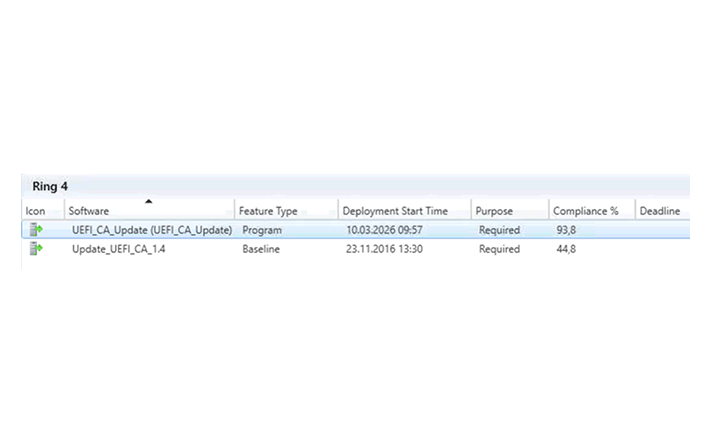
After the SCCM package, program and compliance baseline have been created, the rollout should always start with a small test collection. Do not deploy this directly to all production devices.
First, deploy the package PKG – Trigger Secure Boot 2023 CA Update to your SCCM test collection.
Recommended test collection name: UEFI_CA_Update_Test or Test Ring:
The package must contain both files in the same source folder:
The compliance baseline should run daily during the rollout phase. This provides continuous monitoring and allows SCCM to show which devices are already compliant and which devices still require investigation.
When the baseline runs on the client, the expected result is:
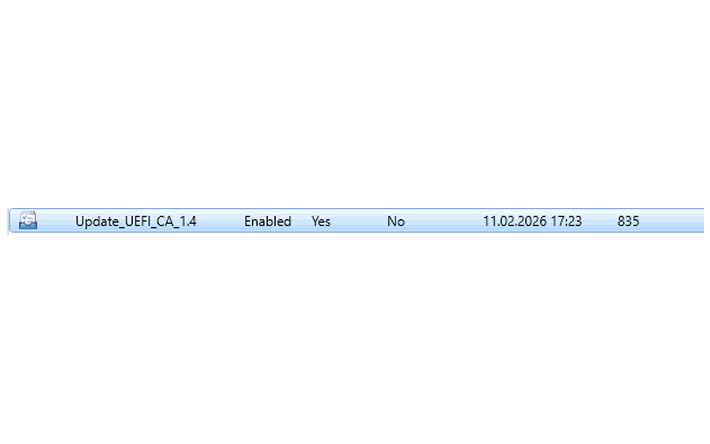
All non-compliant devices need to be reviewed. Do not assume that every non-compliant device failed because of the package. In many cases, the root cause is readiness related.
Check the following first:
- Is the device running in UEFI mode?
- Is Secure Boot enabled?
- Is the BIOS or UEFI firmware up to date?
- Is the device model supported by the OEM for the Secure Boot 2023 certificate update?
- Was the Secure-Boot-Update scheduled task available and triggered?
- Was the local Get-UEFICertificate.ps1 script copied correctly to the client?
- Has the device rebooted after the package deployment?
Devices from the following collections must be handled separately:
UEFI_CA_Update_UEFI_OFF
UEFI_CA_Update_SecureBoot_OFF
UEFI_CA_Update_NotReady
These devices are not ready for the Secure Boot 2023 CA update. They require troubleshooting before the rollout can continue.
For UEFI off devices, verify whether the device is still installed in legacy BIOS mode. These devices may require conversion to UEFI, reinstalling the operating system, or a separate migration process depending on the environment.
For Secure Boot off devices, check whether Secure Boot can be enabled in BIOS or UEFI settings. In some environments this can be automated through vendor tools such as Dell Command, HP BIOS Configuration Utility, Lenovo BIOS tooling, or firmware management solutions.
For devices with outdated firmware, perform a BIOS or UEFI firmware update first and then rerun the SCCM package and compliance baseline.
If a device is too old and the OEM does not provide firmware support for the required Secure Boot certificate update, the device should be documented as unsupported and planned for hardware replacement or exception handling.
This step is important because the Secure Boot 2023 CA update is not only a Windows configuration change. The firmware must support the updated Secure Boot variables. A device can have the correct SCCM package, registry value and scheduled task, but still fail to complete the update if the firmware does not support it properly.
Additional note: Hardware age, firmware support and OEM responsibility
In addition to UEFI and Secure Boot readiness, device age and firmware support are critical for this rollout. The Secure Boot 2023 CA update is not only controlled by Windows. Windows can trigger the certificate update process, but the device firmware must be able to store and process the updated Secure Boot variables.
For devices older than 2020, you should expect additional validation work. In many cases, these devices need a BIOS or UEFI firmware update first. Whether the 2023 Secure Boot certificates are included in firmware, or whether the model is still supported for this transition, depends on the hardware manufacturer and the exact model.
Dell, for example, states that systems shipped before 2020, or listed as out of scope, have no planned BIOS updates with the 2023 certificates included. Dell also clarifies that this does not automatically mean these systems will not boot after June 2026 or that they cannot receive certificate updates through Windows Update. DELL KB
For devices manufactured between 2020 and 2026, the expected path is different. Supported devices should normally be able to receive the Secure Boot 2023 CA update through the Microsoft update mechanism, provided that Windows is supported, Secure Boot is enabled, the device is in UEFI mode, and the firmware can handle the update. Microsoft states that many Windows PCs manufactured since 2024 already include the updated 2023 certificates, while remaining devices are updated through Windows monthly updates together with OEM firmware support where needed. MS Playbook
For devices manufactured in 2026, or newer platforms released after the transition, the 2023 Secure Boot certificates should normally already be part of the production firmware. The same applies to many newer server platforms and virtual machine versions built since 2024, and almost all released in 2025, according to Microsoft server guidance.
A BIOS update is still strongly recommended where the OEM provides one. The BIOS or UEFI firmware update can include updated default Secure Boot certificate databases and improve compatibility with the Microsoft certificate update process. However, the active Secure Boot database used by Windows may still need to be updated through Windows servicing, Intune, GPO, SCCM package deployment, or the Microsoft controlled rollout mechanism.
For this reason, do not decide based only on the device vendor. Always check the exact model and BIOS version against the OEM documentation.
Use the vendor guidance as the source of truth:
| Vendor | What to check |
|---|---|
| Dell Client | Check Dell Secure Boot Transition FAQ and model specific support pages. Dell documents the impact of expired certificates and which platforms are out of scope for BIOS updates with 2023 certificates. |
| Dell PowerEdge | Check the PowerEdge BIOS guidance. Dell lists minimum BIOS versions for supported server generations that include the Microsoft Secure Boot 2023 certificates. Dell also states that 14th, 15th and 16th generation PowerEdge platforms are planned or covered, while 12th and 13th generation platforms are not receiving updates due to end of service status. |
| HP | Check the HP support article “HP PCs, Prepare for new Windows Secure Boot certificates”. HP states that it is working with Microsoft to prepare Secure Boot enabled HP products and provides BIOS guidance for impacted platforms. |
| Lenovo | Check Lenovo article HT518129 for the exact Lenovo model. Lenovo documents the 2011 Microsoft Secure Boot certificate expiration and the transition to the 2023 certificates for Lenovo commercial and consumer PCs. |
Practical handling in SCCM:
- Keep all UEFI off, Secure Boot off and Not Ready devices in separate collections.
- For older devices, check the OEM support page first.
- Update BIOS or UEFI firmware before retrying the Secure Boot 2023 CA package.
- After firmware update, rerun the SCCM package and then rerun the compliance baseline.
- Devices that remain non-compliant after firmware update, reboot and baseline evaluation should be reviewed model by model.
- If the OEM confirms that the model is out of scope or unsupported, document the device as an exception and plan hardware replacement or risk acceptance.
This is why the SCCM rollout should not only show “Compliant” and “Non-Compliant”. It should also separate devices that are technically not ready because Secure Boot is disabled, UEFI is disabled, firmware is outdated, or the hardware model is no longer supported by the OEM.
8. OEM and hardware vendor readiness
The update is firmware dependent. Windows can trigger and orchestrate Secure Boot certificate servicing, but firmware is responsible for storing and validating Secure Boot databases. If firmware cannot process the new Secure Boot variables, the rollout may not complete even if the registry value and scheduled task were applied successfully.
Some vendors provide BIOS updates for older models. Very old or out of support models may not receive BIOS updates that contain the new 2023 certificates in the default firmware database. That does not always mean Windows cannot update the active database, but it does mean that OEM validation is mandatory. In some cases, hardware replacement is the clean long term option.
- For Dell client devices, check the Dell Secure Boot Transition FAQ and the Dell 2011 Secure Boot Certificate Expiration article. Dell states that client BIOS releases after January 1, 2026 contain the new 2023 Secure Boot certificates.
- For Dell PowerEdge servers, check the Dell PowerEdge server BIOS guidance and required BIOS versions.
- For HP clients and thin clients, check HP Prepare for new Windows Secure Boot certificates and minimum BIOS requirements.
- For Lenovo commercial PCs, check the Lenovo Secure Boot Certificate Expiration guide.
- For Lenovo server, WinPE or boot media scenarios, check the Lenovo Press article about updating Windows Boot Manager and WinPE with Windows UEFI CA 2023.
Dell: Secure Boot Transition FAQ
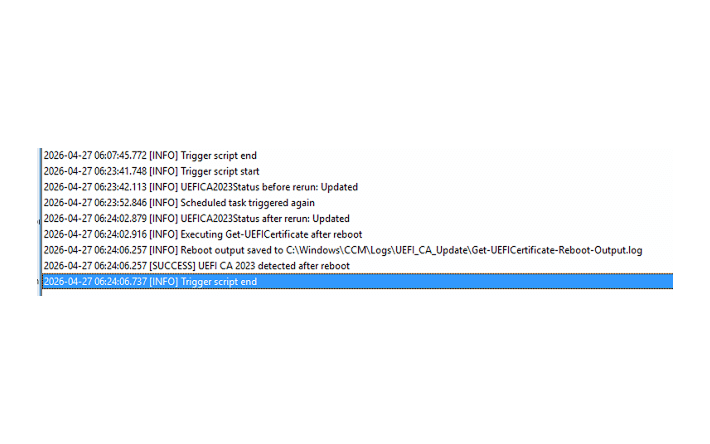
On Client Logs:
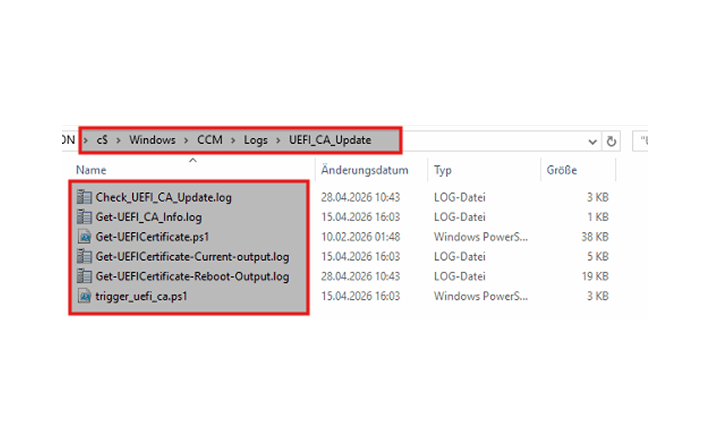
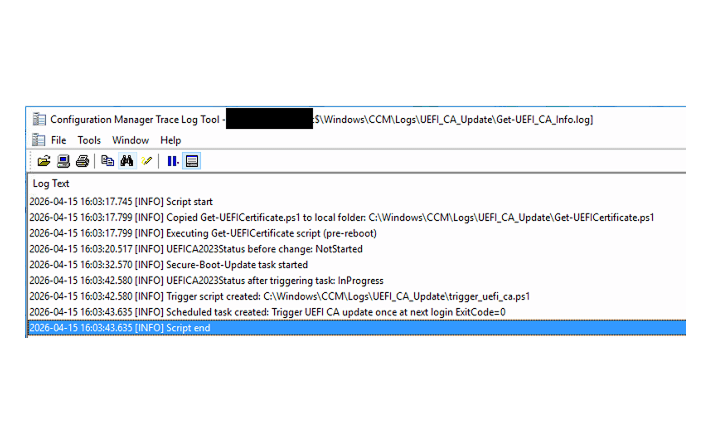
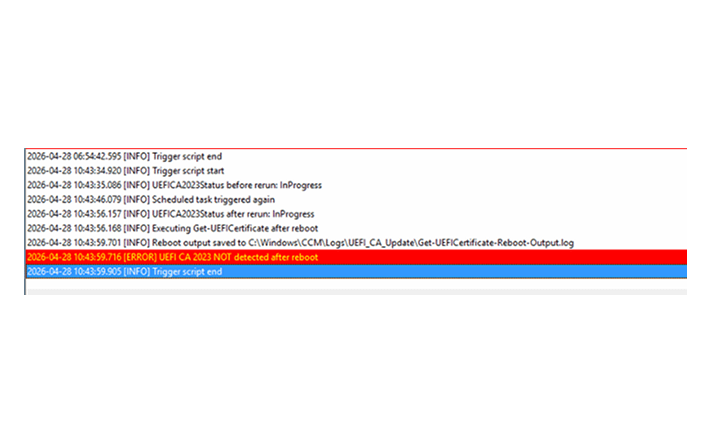
After Reboot:
9. Intune implementation
For Intune managed clients, use Intune Settings Catalog and Remediations. Do not combine Intune policy with the SCCM package on the same device group unless you intentionally define ownership and troubleshooting process.
9.1 Intune prerequisites
- Devices must be Intune enrolled.
- Platform must be Windows 10 or later.
- UEFI and Secure Boot must be enabled for the certificate update to apply.
- Required diagnostic data must be enabled for Microsoft managed rollout and reporting.
- Device name in diagnostic data should be allowed where readable reporting is required.
- Data Processor Service for Windows should be enabled for accurate Windows Autopatch reporting.
The Secure Boot status report depends on diagnostic events after startup. Reporting can show Unknown or Not applicable when required diagnostic data is missing, stale or not processed yet.
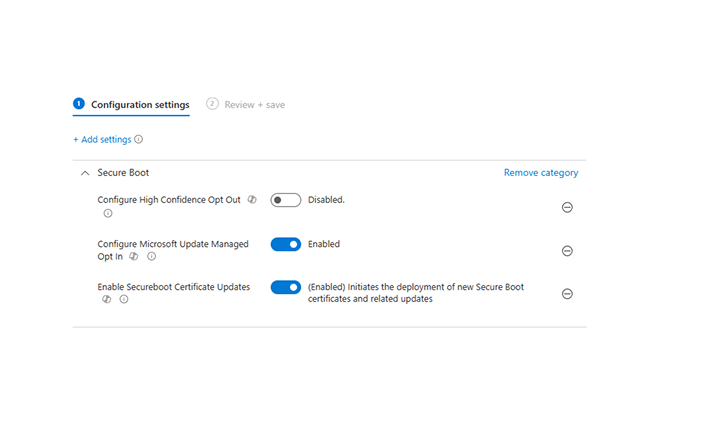
9.2 Intune Settings Catalog policy
Intune admin center
Devices
Configuration
Create
New Policy
Platform: Windows 10 and later
Profile type: Settings Catalog
Search: Secure Boot| Setting | Recommended approach |
| Enable Secureboot Certificate Updates | Enabled for the target rollout group |
| Configure Microsoft Update Managed Opt In | Use based on your Microsoft managed rollout strategy and diagnostic data readiness |
| Configure High Confidence Opt-Out | Use carefully if you want to opt out of automatic high confidence deployment buckets |
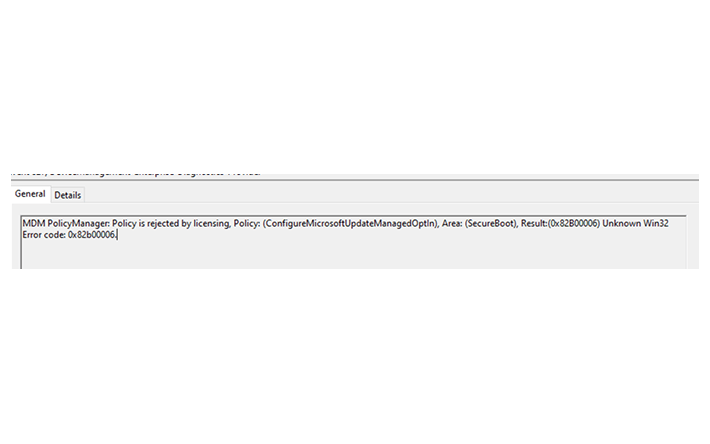
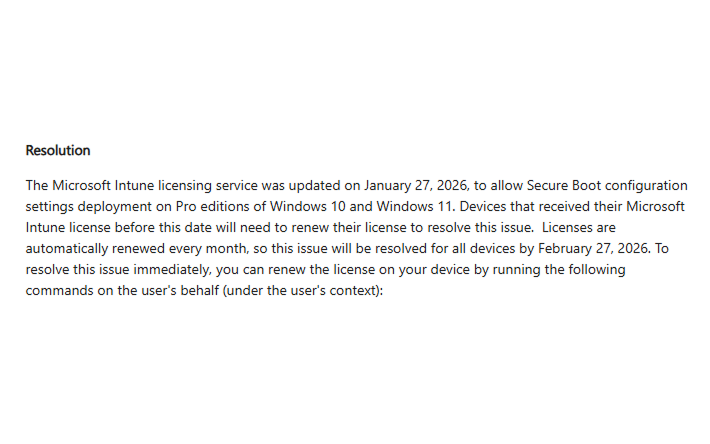
Microsoft documents Intune Error 65000 on some Pro edition scenarios for Secure Boot configuration settings. Check Microsoft known issues before treating every 65000 as a script or policy mistake.
9.3 Intune Remediations
Use one remediation package for monitoring and, only if required, a separate remediation package for triggering. A detection only package is safer during the assessment phase. The detection output should collect manufacturer, model, BIOS version, firmware type, Secure Boot state, UEFICA2023Status, UEFICA2023Error, UEFICA2023ErrorEvent, AvailableUpdates, WindowsUEFICA2023Capable and recent Event IDs 1801 and 1808. For rollout execution, use the Microsoft documented registry and scheduled task method only on devices where prerequisites are already met.
9.4 Intune Remediations & Detection Script
Intune Remediations can be used for two different purposes during the Secure Boot 2023 CA rollout.
First, they can be used for monitoring only, for example to detect whether UEFI is enabled, Secure Boot is enabled, and whether the Secure Boot CA 2023 update is already applied.
Second, they can be used for configuration and remediation, for example to configure the Microsoft managed Secure Boot update opt in registry value.
In Intune Remediations, the detection script controls the result. exit 0 means compliant, and exit 1 means non-compliant and triggers the remediation script if one is configured.
Prepare this Remediation Scripts for a full overview:
Detect UEFI ON 🡪 Detect Secure Boot ON 🡪 Detect Secure Boot CA 2023 Update 🡪
Recommended Intune configuration:
Devices 🡪 Remediations 🡪 Create script package:
Run this script using the logged-on credentials: No
Enforce script signature check: Yes, if your organization requires signed scripts
Run script in 64-bit PowerShell: Yes
Schedule: Daily during rollout
Microsoft also provides an official Secure Boot monitoring approach using Intune Remediations, where the pre-remediation detection output can be used for reporting and troubleshooting.
9.4.1 Detect if UEFI is enabled
Use this as a detection-only remediation package. Do not add a remediation script for this check, because switching a device from Legacy BIOS to UEFI usually requires firmware configuration, disk layout validation, and sometimes OS conversion or reinstall planning.
Expected result:
0 = UEFI enabled
1 = UEFI not enabled or cannot be evaluated
Check If UEFI Is ON Script:
############################################################
# Script: Check If UEFI Is ON
# Author: Marko Nisic
# Company: IT
# Version: 1.0
# Date: 01.01.2026
############################################################
# 0 = UEFI enabled
# 1 = UEFI not enabled or cannot be evaluated
############################################################

try {
    Add-Type -TypeDefinition @"
using System;
using System.Runtime.InteropServices;
public class FirmwareTypeNative {
    [DllImport("kernel32.dll")]
    public static extern bool GetFirmwareType(out uint firmwareType);
}
"@ -ErrorAction Stop

    $firmwareType = 0

    if ([FirmwareTypeNative]::GetFirmwareType([ref]$firmwareType) -and $firmwareType -eq 2) {
        Write-Output "0"
        exit 0
    }
    else {
        Write-Output "1"
        exit 1
    }
}
catch {
    Write-Output "1"
    exit 1
}
Devices that return 1 should be reviewed separately. These devices are not ready for the Secure Boot 2023 CA update and may require BIOS configuration, UEFI conversion, firmware update, or hardware replacement depending on the model.
9.4.2 Detect if Secure Boot is enabled
Use this as a detection-only remediation package. Do not remediate Secure Boot blindly on all devices. Secure Boot enablement can be vendor specific and may require BIOS password handling, firmware tooling, BitLocker recovery key validation, and model-specific testing.
Expected result:
0 = Secure Boot enabled
1 = Secure Boot disabled or cannot be evaluated
Script Check If SecureBoot is ON:
############################################################
# Script: Check If SecureBoot is ON
# Author: Marko Nisic
# Company: IT
# Version: 1.0
# Date: 01.01.2026
############################################################
# 0 = Secure Boot enabled
# 1 = Secure Boot disabled or cannot be evaluated
############################################################

try {
    if (Confirm-SecureBootUEFI) {
        Write-Output "0"
        exit 0
    }
    else {
        Write-Output "1"
        exit 1
    }
}
catch {
    Write-Output "1"
    exit 1
}
Devices that return 1 should be reviewed before the Secure Boot CA 2023 update is triggered. If Secure Boot is disabled, the certificate update cannot complete as expected.
9.4.3 Detect if the Secure Boot CA 2023 update is applied
This detection script checks two things.
First, it checks the Secure Boot servicing registry values under:
HKLM:\SYSTEM\CurrentControlSet\Control\SecureBoot\Servicing
Second, it checks whether the active Secure Boot DB contains:
Windows UEFI CA 2023
Microsoft documents that UEFICA2023Status progresses from NotStarted to InProgress and finally to Updated when the Secure Boot certificate update succeeds. If a step fails, the error is recorded in UEFICA2023Error.
Detect UEFI CA 2023 Update is Appyed Script:
<#
Script: SecureBoot CA 2023 Detection
Author: Marko Nisic
Company: IT
Version: 1.0
Date: 01.01.2026

Description:
Check if the Secure Boot CA 2023 update is applied.

Exit codes:
0 = Compliant
1 = Non-compliant or cannot be evaluated
#>

$regPath = "HKLM:\SYSTEM\CurrentControlSet\Control\SecureBoot\Servicing"

function Get-RegistryValue {
    param(
        [Parameter(Mandatory = $true)][string]$Path,
        [Parameter(Mandatory = $true)][string]$Key
    )

    if (-not (Test-Path $Path)) {
        return $null
    }

    try {
        return (Get-ItemProperty -Path $Path -Name $Key -ErrorAction Stop).$Key
    }
    catch {
        return $null
    }
}

$status   = Get-RegistryValue -Path $regPath -Key "UEFICA2023Status"
$errorVal = Get-RegistryValue -Path $regPath -Key "UEFICA2023Error"
$capable  = Get-RegistryValue -Path $regPath -Key "WindowsUEFICA2023Capable"

if (($status -eq "Updated" -or $capable -eq 2) -and ($null -eq $errorVal -or $errorVal -eq 0)) {
    Write-Output "Compliant: Registry indicates Secure Boot CA 2023 update applied. Status=$status, Capable=$capable, Error=$errorVal"
    exit 0
}

try {
    $db = Get-SecureBootUEFI -Name db -ErrorAction Stop
    $dbString = [System.Text.Encoding]::ASCII.GetString($db.Bytes)

    if ($dbString -match "Windows UEFI CA 2023") {
        Write-Output "Compliant: Windows UEFI CA 2023 certificate found in Secure Boot DB."
        exit 0
    }
    else {
        Write-Output "Non-Compliant: Windows UEFI CA 2023 certificate not found in Secure Boot DB."
        exit 1
    }
}
catch {
    Write-Output "Non-Compliant: Unable to access Secure Boot UEFI DB. Device may not support Secure Boot, Secure Boot may be disabled, or access is restricted."
    exit 1
}
Use this package as a monitoring package. Devices that return non-compliant should be compared with the UEFI and Secure Boot detection results. If UEFI or Secure Boot is disabled, fix that first before troubleshooting the certificate update itself.
9.4.4 Configure and remediate Microsoft managed Secure Boot update opt in
This remediation configures:
HKLM:\SYSTEM\CurrentControlSet\Control\SecureBoot\MicrosoftUpdateManagedOptIn = 1
This setting is used for Microsoft managed Secure Boot certificate update handling through the Intune method. It is useful when the organization wants Microsoft Update to manage Secure Boot certificate deployment for eligible devices.
Important: this is not the same as the SCCM direct trigger package using:
AvailableUpdates = 0x5944
Use this remediation only if your rollout design uses the Microsoft managed Intune method.
Script check if the setting are appyed with the UEFI CA 2023 If not then remediate
9.4.5 Configure and Remediation for UEFI CA 2023 Update:
Name: Config UECI CA 2023 Update
Detection Script:
# ==============================
# Parameters
# ==============================
$Path = "HKLM:\SYSTEM\CurrentControlSet\Control\SecureBoot\"
$Key = "MicrosoftUpdateManagedOptIn"
$ExpectedValue = 1

# ==============================
# Detection Logic
# ==============================
try {
    # Check if the registry path exists
    if (Test-Path -Path $Path) {
        # Get the current value of the registry key
        $CurrentValue = (Get-ItemProperty -Path $Path -Name $Key -ErrorAction SilentlyContinue).$Key

        # If the value equals 1, return compliant
        if ($CurrentValue -eq $ExpectedValue) {
            Write-Output "Compliant: Value is $ExpectedValue."
            exit 0
        }
        else {
            Write-Output "Non-Compliant: Value is not $ExpectedValue."
            exit 1
        }
    }
    else {
        Write-Output "Non-Compliant: Registry path does not exist."
        exit 1
    }
}
catch {
    Write-Error "Detection failed: $($_.Exception.Message)"
    exit 1
}
Remediation Script : ( Same Package )
# ==============================
# Parameters
# ==============================
$Path = "HKLM:\SYSTEM\CurrentControlSet\Control\SecureBoot\"
$Key = "MicrosoftUpdateManagedOptIn"
$ExpectedValue = 1
$KeyFormat = "DWORD"

# ==============================
# Remediation Logic
# ==============================
try {
    # Check if the registry path exists, create if missing
    if (!(Test-Path -Path $Path)) {
        New-Item -Path $Path -Force | Out-Null
    }

    # Get the current value of the registry key
    $CurrentValue = (Get-ItemProperty -Path $Path -Name $Key -ErrorAction SilentlyContinue).$Key

    # If the value is missing or not equal to 1, set it to 1
    if ($null -eq $CurrentValue -or $CurrentValue -ne $ExpectedValue) {
        Set-ItemProperty -Path $Path -Name $Key -Value $ExpectedValue -Type $KeyFormat
        Write-Output "Remediation applied: Value set to $ExpectedValue."
    }
    else {
        Write-Output "No action required: Value is already correct ($ExpectedValue)."
    }
}
catch {
    Write-Error "Remediation failed: $($_.Exception.Message)"
}
Recommended Intune remediation structure
Use separate remediation packages. This makes reporting clearer and avoids mixing different states into one result.
| Remediation package | Purpose | Remediation script |
|---|---|---|
| Detect UEFI ON | Shows devices running in UEFI mode | No |
| Detect Secure Boot ON | Shows devices with Secure Boot enabled | No |
| Detect Secure Boot CA 2023 Update | Shows devices already updated | No |
| Config UECI CA 2023 Update | Enables Microsoft managed rollout opt in | Yes |
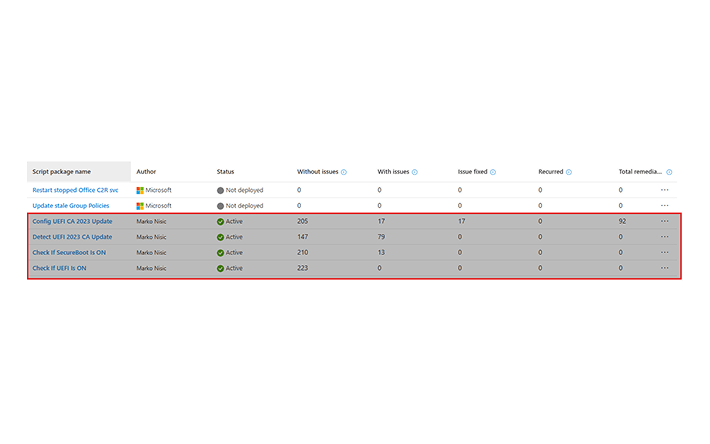
For devices that are UEFI off or Secure Boot off, do not continue directly with CA 2023 remediation. Those devices need separate troubleshooting, BIOS configuration, firmware update, or hardware replacement planning.
For devices that are UEFI enabled and Secure Boot enabled, but still not CA 2023 compliant, continue with the Secure Boot CA 2023 update method selected for your environment. In SCCM environments, this can be your package with AvailableUpdates = 0x5944 and the Secure-Boot-Update scheduled task. In Intune environments, this can be the Settings Catalog policy or Microsoft managed update method, depending on your rollout design.
10. Intune and Windows Autopatch reporting
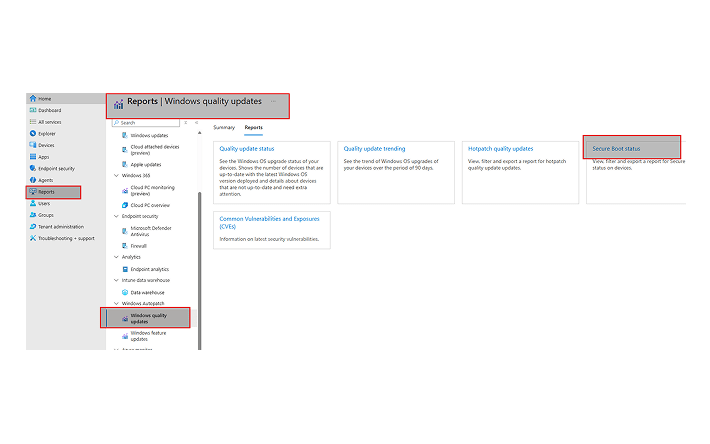
Use the Windows Autopatch Secure Boot status report for visibility where available.
Intune admin center
Reports
Windows Autopatch
Windows quality updates
Reports tab
Secure Boot status
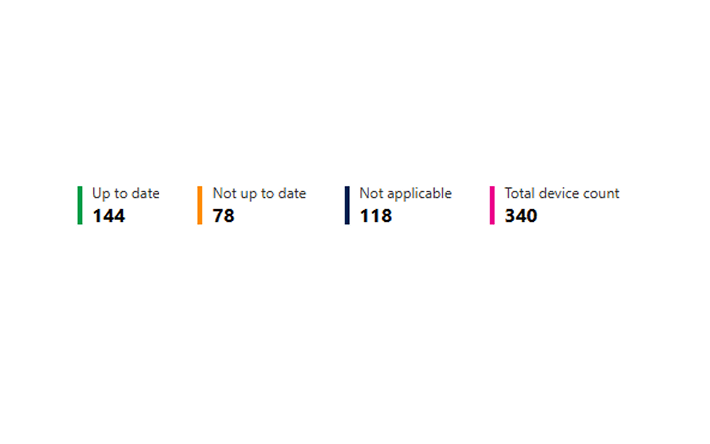
The report helps identify which devices have Secure Boot enabled, which Secure Boot enabled devices are up to date, and which devices require certificate updates. After update and restart, Microsoft states that reporting can take up to 12 hours to reflect the new state. Unknown or Not applicable does not always mean failure.
11. GPO implementation for servers
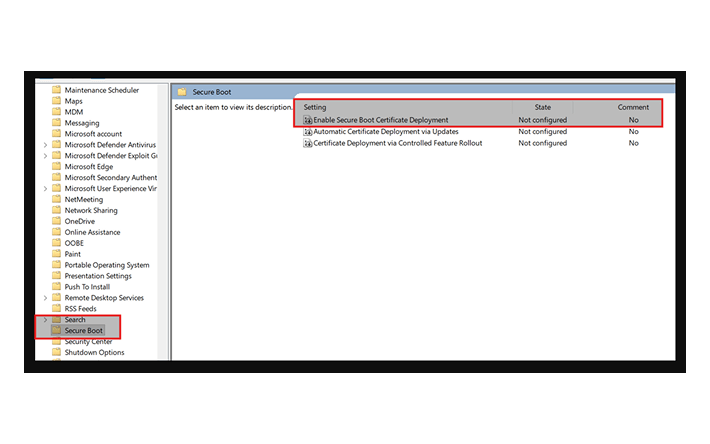
For domain joined servers, Microsoft provides a Group Policy method. Use this when GPO is the primary control plane, especially for server OUs or traditional domain joined clients that are not primarily managed by Intune or SCCM.
Computer Configuration
Administrative Templates
Windows Components
Secure Boot- Enable Secure Boot Certificate Deployment
- Automatic Certificate Deployment via Updates
- Certificate Deployment via Controlled Feature Rollout
Use latest ADMX templates and patched management machines. If the Secure Boot node is missing, update the central store. Use security filtering or pilot OUs for rollout rings. For servers, coordinate with server owners and use maintenance windows.
Download admx Tamplete Here
12. Server specific notes
Servers require extra caution. Coordinate with the datacenter or server operations team. Validate OEM firmware guidance before rollout. Dell PowerEdge, HPE, Lenovo and other server platforms may have minimum BIOS requirements. For virtual machines, check Secure Boot state, generation, virtual firmware, NVRAM and hypervisor support. Do not rely only on snapshots as a rollback method for firmware trust changes.
- Use maintenance windows.
- Confirm recovery keys and backup procedures.
- Check OEM server BIOS requirements.
- Handle clusters and critical workloads separately.
- Validate Gen2 VM Secure Boot where applicable.
- Document rollback and recovery procedures.
13. Troubleshooting
Start with simple checks before assuming a platform failure.
Confirm-SecureBootUEFI

Get-ScheduledTask -TaskPath '\Microsoft\Windows\PI\' -TaskName 'Secure-Boot-Update'

Start-ScheduledTask -TaskPath '\Microsoft\Windows\PI\' -TaskName 'Secure-Boot-Update'

Get-ItemProperty -Path 'HKLM:\SYSTEM\CurrentControlSet\Control\SecureBoot' |
Select-Object AvailableUpdates, AvailableUpdatesPolicy, HighConfidenceOptOut, MicrosoftUpdateManagedOptIn

Get-ItemProperty -Path 'HKLM:\SYSTEM\CurrentControlSet\Control\SecureBoot\Servicing' |
Select-Object UEFICA2023Status, UEFICA2023Error, UEFICA2023ErrorEvent, WindowsUEFICA2023Capable

Get-WinEvent -FilterHashtable @{
    LogName = 'System'
    Id = 1801,1808
    StartTime = (Get-Date).AddDays(-14)
} | Select-Object TimeCreated, Id, ProviderName, Message| Symptom | Likely cause | Action |
| Detection returns 1 | Get-UEFICertificate missing, KEK not updated, or evaluation failed | Check local script path and logs |
| Get-UEFICertificate.ps1 missing locally | Package did not run or source file missing | Fix package source and redeploy |
| Secure-Boot-Update task missing or disabled | Windows servicing issue or task removed | Restore task before continuing |
| UEFICA2023Error present | Firmware or servicing issue | Check event logs and OEM BIOS update |
| BitLocker recovery after reboot | Boot measurement changed | Use escrowed recovery key and validate next reboot |
| Autopatch report stale | Reporting latency or diagnostic data missing | Wait up to 12 hours and validate diagnostic data |
| Old hardware does not complete | OEM firmware limitation | Check support matrix and plan BIOS update or replacement |
14. Recommended rollout strategy
| Ring | Scope | Goal |
| Ring 0 | IT owned test devices | Validate scripts, package content and logging |
| Ring 1 | Representative pilot by vendor, model and BIOS version | Validate firmware behavior and BitLocker impact |
| Ring 2 | Broader client rollout | Expand after stable pilot results |
| Ring 3 | Remaining client fleet | Complete standard client rollout |
| Server ring | Servers with datacenter team | Separate change control and maintenance windows |
Use the SCCM package first to copy Get-UEFICertificate.ps1 and trigger the process. Use the baseline evaluation once per day to monitor 0 or 1 compliance. Use compliant and non compliant collections for reporting and follow up.
15. Final production checklist
| Check | Done |
| UEFI boot mode verified | ☐ |
| Secure Boot enabled | ☐ |
| BitLocker recovery keys backed up | ☐ |
| Latest cumulative updates installed | ☐ |
| Latest BIOS or UEFI firmware installed | ☐ |
| OEM support confirmed | ☐ |
| Pilot devices selected by manufacturer, model and BIOS version | ☐ |
| SCCM collections created | ☐ |
| Package source prepared with Get-UEFICertificate.ps1 and My v1.7 script | ☐ |
| Scripts signed if required | ☐ |
| Package distributed to DPs | ☐ |
| Package deployed to pilot collection | ☐ |
| Baseline created with Integer rule equals 0 | ☐ |
| Baseline evaluation schedule set to once per day | ☐ |
| Compliant and non compliant collections created from baseline deployment status | ☐ |
| Secure-Boot-Update task validated | ☐ |
| Registry status checked | ☐ |
| Event IDs 1801 and 1808 reviewed | ☐ |
| First reboot completed | ☐ |
| Second validation completed | ☐ |
| Reporting delay considered | ☐ |
| Server rollout coordinated with datacenter team | ☐ |
| Rollback and recovery plan documented | ☐ |
16. Final summary
The UEFI Secure Boot 2023 CA update is a trust chain lifecycle update. The practical enterprise approach is to inventory readiness, validate firmware support, pilot by model and BIOS version, and use one clear control plane per device group.
For the SCCM method in this article, the key design choice is offline packaging. Download Get-UEFICertificate.ps1 once from PowerShell Gallery, place it into the package source together with My v1.7 rollout script, copy it locally during package execution, and monitor compliance with a simple 0 or 1 Configuration Baseline detection script.
Do not wait until 06.2026. Start with inventory, pilot carefully, validate logs and event IDs, and expand only after firmware and BitLocker behavior are understood.
17. References
- Microsoft: Windows Secure Boot certificate expiration and CA updates https://support.microsoft.com/en-us/topic/windows-secure-boot-certificate-expiration-and-ca-updates-7ff40d33-95dc-4c3c-8725-a9b95457578e
- Microsoft: Secure Boot Certificate updates, guidance for IT professionals and organizations https://support.microsoft.com/en-us/topic/secure-boot-certificate-updates-guidance-for-it-professionals-and-organizations-e2b43f9f-b424-42df-bc6a-8476db65ab2f
- Microsoft: Secure Boot troubleshooting guide https://support.microsoft.com/en-us/topic/secure-boot-troubleshooting-guide-5d1bf6b4-7972-455a-a421-0184f1e1ed7d
- Microsoft: Registry key updates for Secure Boot https://support.microsoft.com/en-us/topic/registry-key-updates-for-secure-boot-windows-devices-with-it-managed-updates-a7be69c9-4634-42e1-9ca1-df06f43f360d
- Microsoft: Intune method of Secure Boot https://support.microsoft.com/en-us/topic/microsoft-intune-method-of-secure-boot-for-windows-devices-with-it-managed-updates-1c4cf9a3-8983-40c8-924f-44d9c959889d
- Microsoft: GPO method of Secure Boot https://support.microsoft.com/en-us/topic/group-policy-objects-gpo-method-of-secure-boot-for-windows-devices-with-it-managed-updates-65f716aa-2109-4c78-8b1f-036198dd5ce7
- Microsoft: Monitoring Secure Boot certificate status with Intune Remediations https://support.microsoft.com/en-au/topic/monitoring-secure-boot-certificate-status-with-microsoft-intune-remediations-6696a27b-fa09-4570-b112-124965adc87f
- Microsoft Learn: Secure Boot status report in Windows Autopatch https://learn.microsoft.com/en-us/windows/deployment/windows-autopatch/monitor/secure-boot-status-report
- Microsoft: Known issues and resolutions for Secure Boot certificate updates https://support.microsoft.com/en-us/topic/known-issues-and-resolutions-for-secure-boot-certificates-updates-5813673d-2577-4718-ad28-2554a9178e40
- Microsoft Tech Community: Secure Boot playbook for certificates expiring in 2026 https://techcommunity.microsoft.com/blog/windows-itpro-blog/secure-boot-playbook-for-certificates-expiring-in-2026/4469235
- Microsoft Tech Community: Windows Server Secure Boot playbook https://techcommunity.microsoft.com/blog/windowsservernewsandbestpractices/windows-server-secure-boot-playbook-for-certificates-expiring-in-2026/4495789
- PowerShell Gallery: Get-UEFICertificate https://www.powershellgallery.com/packages/Get-UEFICertificate/1.3
- Dell: Secure Boot Transition FAQ https://www.dell.com/support/kbdoc/en-us/000390990/secure-boot-transition-faq
- Dell: Microsoft 2011 Secure Boot Certificate Expiration https://www.dell.com/support/kbdoc/en-us/000347876/microsoft-2011-secure-boot-certificate-expiration
- Dell: Out of scope platforms for BIOS updates https://www.dell.com/support/kbdoc/en-us/000378734/microsoft-2011-secure-boot-certificates-expiration-for-out-of-scope-platforms-for-bios-updates
- Dell: PowerEdge Server BIOS Update Guidelines https://www.dell.com/support/kbdoc/en-us/000402373/poweredge-server-bios-update-guidelines-for-microsoft-secure-boot-certificates
- HP: Prepare for new Windows Secure Boot certificates https://support.hp.com/us-en/document/ish_13070353-13070429-16
- HP: Prepare for new Microsoft Secure Boot certificates, Thin Client PCs https://support.hp.com/us-en/document/ish_14517323-14517368-16
- Lenovo: 2011 Microsoft Secure Boot Certificate Expiration https://support.lenovo.com/us/en/solutions/ht518129
- Lenovo Press: Updating Windows Boot Manager and WinPE with Windows UEFI CA 2023 Certificate https://lenovopress.lenovo.com/lp2353-updating-windows-boot-manager-and-winpe-windows-uefi-ca-2023-certificate


Leave a Reply