
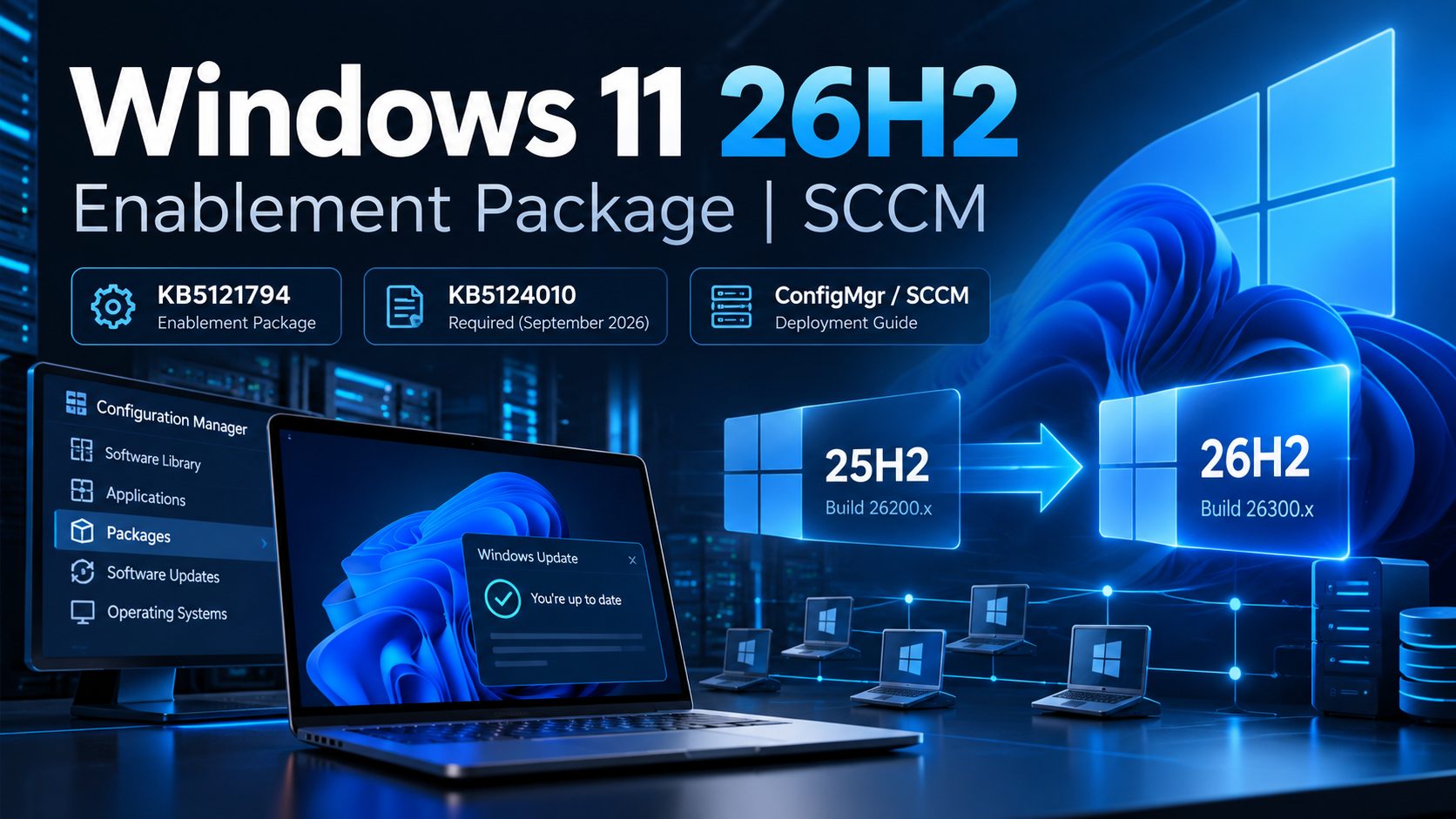
Windows 11 26H2 is available as a lightweight enablement package. This step-by-step Configuration Manager guide shows how to deploy KB5121794 from Windows 11 24H2 or 25H2 using SCCM, a silent DISM command, planned reboot handling and post-upgrade verification. My test deployment uses the SCCM package Win11_26H2_Enablement, ID PS100117.
Supported versions and prerequisite cumulative update
Windows 11 24H2, 25H2 and 26H2 share a common servicing foundation. Microsoft confirms that KB5121794 activates the new release on eligible 24H2 and 25H2 devices rather than performing a conventional full OS replacement. A restart is required.
Before applying KB5121794, install the September 22, 2026 cumulative update KB5124010 or a later cumulative update. Microsoft’s September update release information lists 24H2 build 26100.9550 and 25H2 build 26200.9550. Ensure any pending restart is completed first.
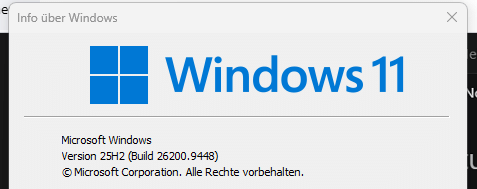
Important: My original source-device screenshot shows Windows 11 25H2 (Build 26200.9448). That is an earlier recorded state, not proof of meeting KB5124010 prerequisites.
Get-ItemProperty "HKLM:\SOFTWARE\Microsoft\Windows NT\CurrentVersion" | Select-Object ProductName, DisplayVersion, CurrentBuild, UBR
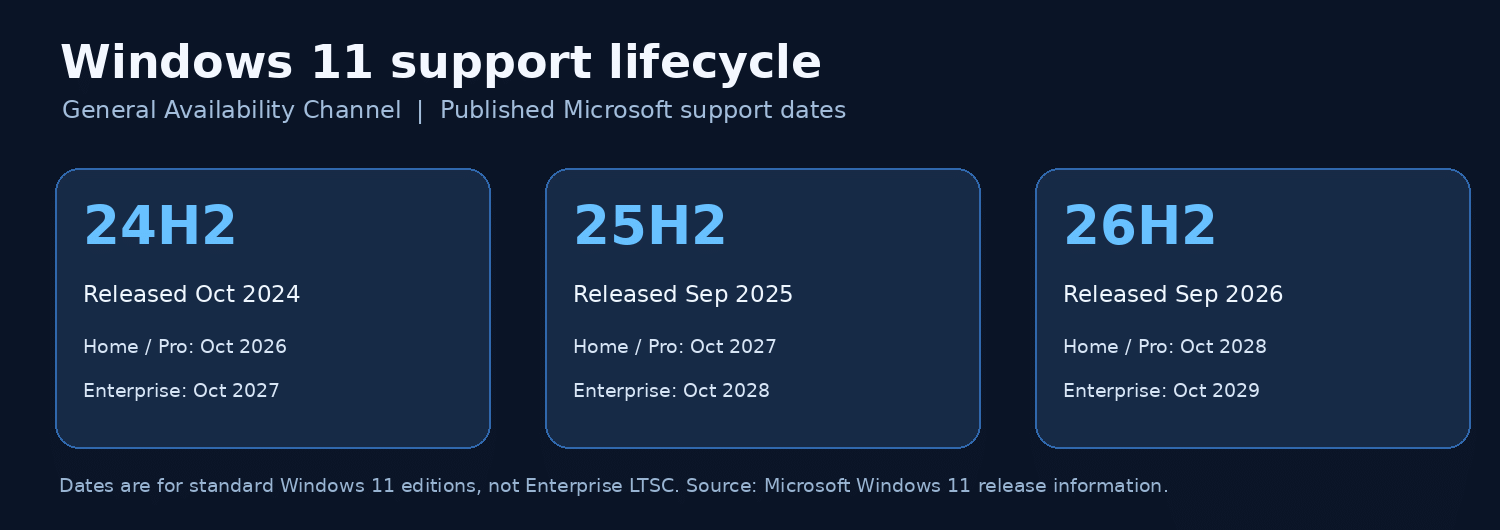
Windows 11 lifecycle comparison
| Version | Home / Pro end of support | Enterprise / Education end of support |
|---|---|---|
| 24H2 | 13 October 2026 | 12 October 2027 |
| 25H2 | 12 October 2027 | 10 October 2028 |
| 26H2 | 10 October 2028 | 9 October 2029 |
These dates apply to the standard General Availability Channel editions, not Enterprise LTSC. Windows 11 26H1 is not the regular in-place enablement path from 24H2 or 25H2.
Step 1: Create the SCCM package
Open Software Library → Application Management → Packages → Create Package. Name the package Win11_26H2_Enablement and set the source to a directory containing Windows11.0-KB5121794-x64.cab. My example package has ID PS100117 and one standard program, Start_Win11_26H2_Enablement.
Configure the following silent installation command:
cmd.exe /c DISM.exe /Online /Add-Package /PackagePath:"Windows11.0-KB5121794-x64.cab" /Quiet /NoRestart
/Online services the running OS, /Quiet suppresses installer UI and /NoRestart prevents DISM from initiating an immediate restart. Use administrative program execution rights and hidden run mode. Ensure the package content and program working directory allow DISM to find the CAB file.


Step 2: Distribute content to Distribution Points
Right-click the package and select Distribute Content. Select your pilot Distribution Points or DP group. Wait for distribution completion before deploying to end-user clients.
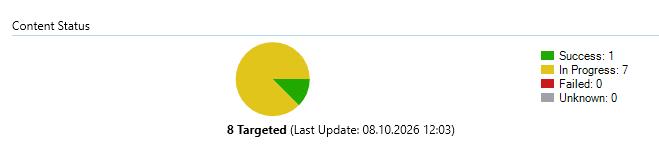
My SCCM Content Status screenshot displays 8 targeted, 1 successful, 7 in progress. These figures represent content distribution targets and must not be confused with Windows client upgrade statistics.
Step 3: Deploy KB5121794 to a pilot collection
Choose Deploy for the SCCM package, select its standard program and assign an eligible Windows 11 24H2/25H2 pilot collection. Validate that each targeted device has KB5124010 or a later cumulative update. For testing, use an Available deployment in Software Center; for a production rollout, use an appropriately scheduled Required deployment, a pilot ring and controlled restart policy.
Step 4: Software Center installation and reboot
The original Software Center capture reports that the package is Installed and displays Restart required: No. This is a result of package/program reporting and /NoRestart handling. It does not override Microsoft’s requirement to restart Windows before 26H2 activation is fully completed.

Arrange a controlled restart and follow Configuration Manager restart notifications and maintenance windows where appropriate. Do not report upgrade compliance solely based on a successful package installation status.
Step 5: Verify Windows 11 26H2 after restart
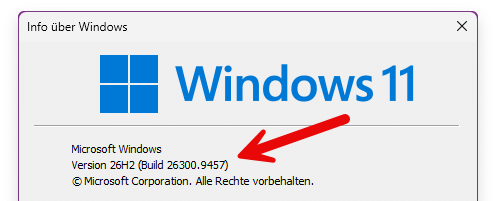
After restarting, run winver and confirm the version is 26H2. You can additionally validate DisplayVersion, CurrentBuild and UBR from the Windows CurrentVersion registry key and confirm ConfigMgr inventory has updated.
Get-ItemProperty "HKLM:\SOFTWARE\Microsoft\Windows NT\CurrentVersion" | Select-Object DisplayVersion, CurrentBuild, UBR
My original after-install screenshot shows Version 26H2 (Build 26300.9457). It documents a 26H2 system, not an authenticated chronology connecting this exact endpoint to the earlier 25H2 screenshot. Microsoft’s September 26H2 GA release listing shows 26300.9550.
Before: Windows 11 25H2 build 26200.9448
After: Windows 11 26H2
Common SCCM troubleshooting checks
- Package not applicable: check Windows version and KB5124010 or a later LCU.
- Content unavailable: verify the source folder, Distribution Point status and SCCM content distribution.
- Installed but version unchanged: complete the mandatory reboot, then re-check winver and registry.
- Client troubleshooting: inspect
execmgr.log,CAS.logandContentTransferManager.log. - Reporting: differentiate content distribution, package execution and post-reboot OS compliance.
Conclusion
KB5121794 offers a streamlined path from supported Windows 11 24H2/25H2 systems to 26H2. For SCCM-managed environments, the successful sequence is install the prerequisite cumulative update → distribute the CAB package → run DISM silently → perform the planned restart → verify Windows 11 26H2.
Microsoft references
- KB5121794: Feature update to Windows 11 26H2
- KB5124010: September 2026 Windows 11 update
- Windows 11 release information
- Configuration Manager restart notifications
Topics: #SCCM #ConfigMgr #Windows11 #Windows1126H2 #KB5121794 #EnablementPackage #FeatureUpdate #PatchManagement #EndpointManagement
Leave a Reply